
If the Google Search bar widget has disappeared from your Android home screen, the cause is usually something simple: the widget was removed, the launcher changed, or the Google app needs attention. In some cases, the widget is still available but not showing because of a home screen setting or app problem.
This guide walks through the most effective ways to get the Google Search bar widget back, starting with the quickest checks and moving to deeper fixes if needed.
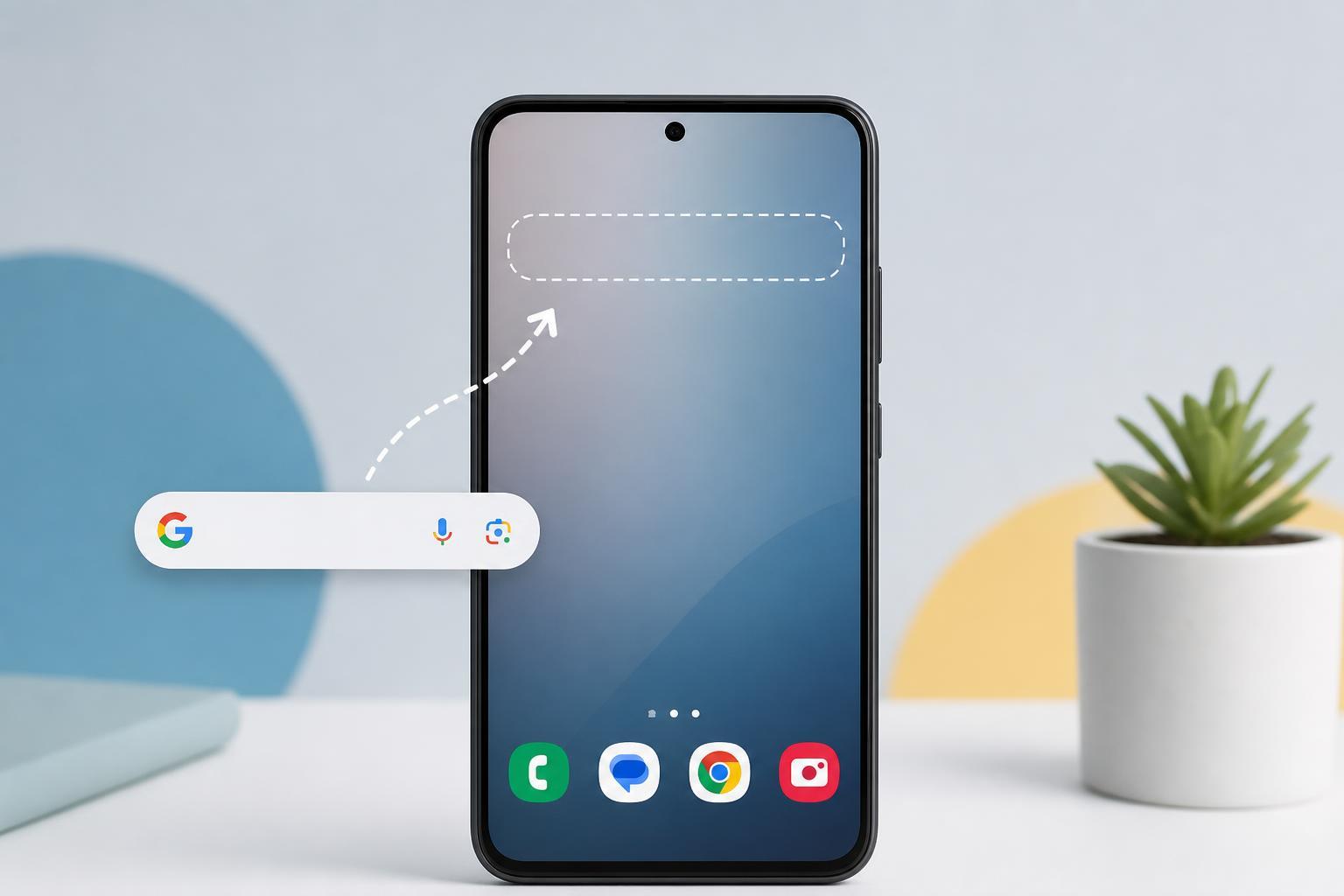
1. Check Whether the Widget Was Removed or Moved
Before changing settings, make sure the widget is actually missing and not just on another home screen page. It may have been moved accidentally, hidden behind another icon, or removed when you changed your launcher layout.
- Swipe through all of your home screen pages to see whether the search bar is on a different screen.
- Open the app drawer and look for the Google app icon if you are unsure whether Google services are still installed.
- Long-press an empty area on the home screen and look for a Widgets option.
- Open the Google widget list and check whether the Search bar, Google Search, or At a Glance widget is available.
2. Re-add the Google Search Widget Manually
If the widget was removed, you can usually add it back from the widget picker. The exact steps vary a little by phone brand and launcher, but the process is similar on most Android devices.
- Touch and hold an empty area on the home screen.
- Tap Widgets or the widget icon when the home screen menu appears.
- Find the Google app or Google Search entry in the widget list.
- Choose the Search bar widget size you want.
- Drag it onto the home screen and place it where you want it.
3. Make Sure the Google App Is Enabled and Up to Date
The Google Search bar widget depends on the Google app. If that app is disabled, outdated, or partly broken, the widget may disappear or fail to load correctly.
- Open Settings on your Android phone.
- Go to Apps, Apps & notifications, or Applications depending on your device.
- Find and open Google.
- Check whether the app is enabled.
- If an update is available in the Play Store, install it.
After updating, return to the home screen and check the widget list again. If the widget still does not appear, open the Google app once so it can finish refreshing its settings.
4. Clear the Google App Cache or Reset Its Data
If the Google app is installed and updated but the widget still is not showing, cached app data may be corrupted. Clearing the cache is the safer first step. If that does not help, resetting the app data can rebuild the widget configuration.
- Open Settings and go to Apps.
- Tap Google.
- Select Storage and cache or Storage.
- Tap Clear cache first.
- Check the widget again.
- If needed, return to the same menu and use Clear storage or Clear data, then open the Google app again.
5. Try a Different Launcher or Reset Your Home Screen Settings
If the widget is missing only on your current home screen launcher, the launcher itself may be the problem. Some third-party launchers handle Google widgets differently, and some OEM launchers hide certain widget sizes or limit them on the main home screen.
- Open the Play Store and check whether your current launcher has an update.
- If you recently changed launchers, switch back to the default launcher and test the widget there.
- If the default launcher still does not show the widget, look for a home screen reset option in the launcher settings.
- As a last test, install a well-known launcher that supports widgets properly and see whether the Google Search bar appears.
Other Checks That Can Help
If none of the main fixes work, a few smaller issues may be blocking the widget.
- Make sure Google Search is not being blocked by battery optimization settings.
- Check whether the phone is in a restricted work profile or child account that limits widgets.
- Look for a home screen lock setting that prevents widget changes.
- Verify that the Google app is installed from the Play Store and not disabled by a device administrator policy.
- Restarting the launcher or phone can help after you change settings, but it is most useful after trying one of the fixes above, not as the only step.
How to Narrow Down the Cause
A few clues can help you figure out where the problem is coming from.
- If the widget appears in the widget picker but not on the home screen, the launcher is usually the issue.
- If the widget is missing from the picker entirely, the Google app is the likely cause.
- If the widget disappears after an update, the problem may be temporary app data corruption or a launcher compatibility issue.
- If the widget works on one launcher but not another, the launcher is definitely involved.
What to Try First
In most cases, the fastest fix is to open the widget picker and add the Google Search bar again. If that does not work, update the Google app and clear its cache before moving on to launcher changes. Those steps solve most missing-widget problems without requiring a full reset of your phone.





