
If your Xiaomi phone is running low on space, MIUI gives you several built-in ways to free up storage without deleting everything you care about. The best approach is usually to start with the biggest space hogs first: cached junk, large apps, downloaded media, and old files you no longer need.
This guide walks through five of the most effective ways to clear storage on MIUI so you can make room for apps, photos, updates, and smoother day-to-day use.
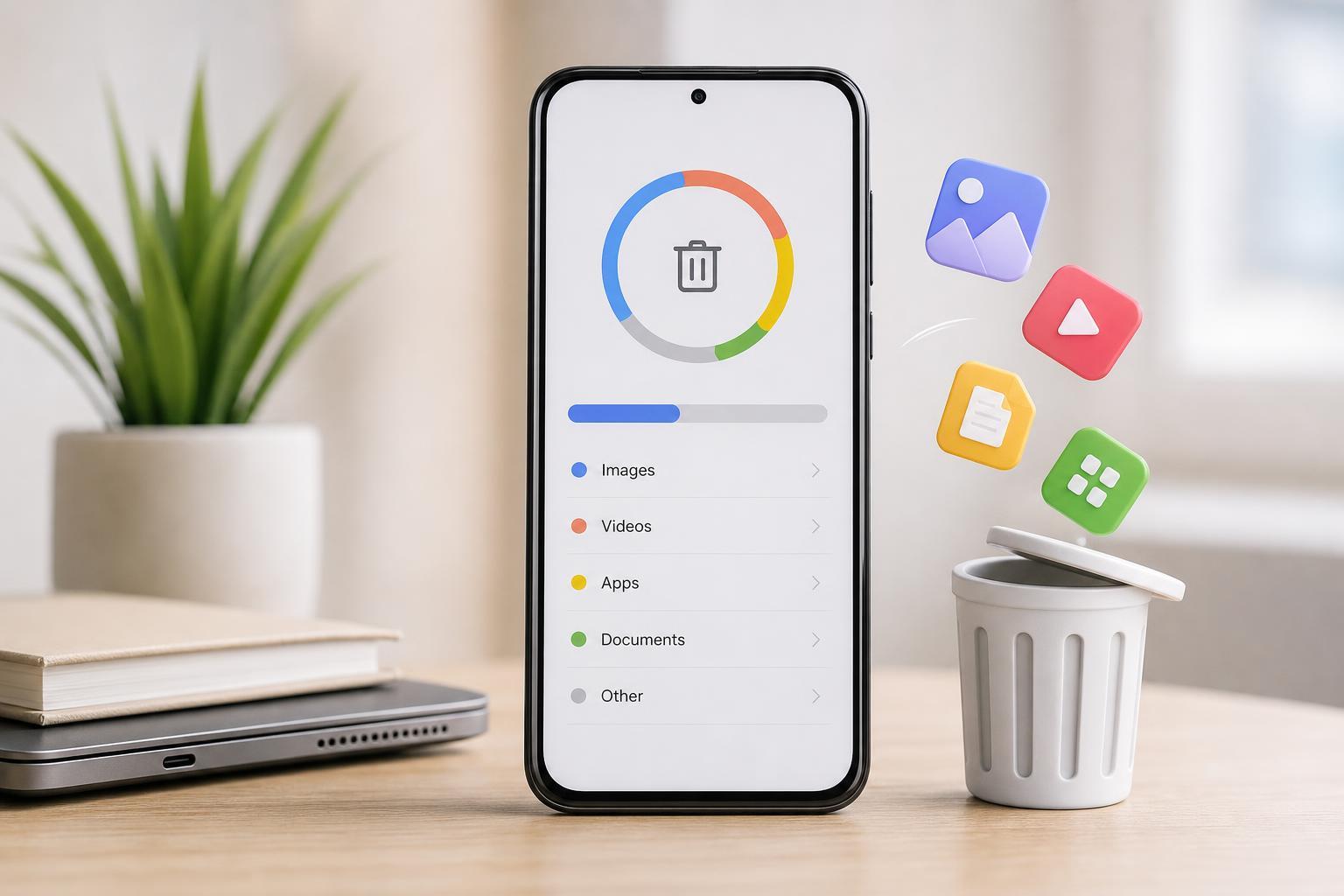
1. Use MIUI’s Built-In Cleaner First
MIUI includes a security and cleanup tool that can remove temporary files, app cache, leftover junk, and other safe-to-delete data. It is usually the fastest way to recover space because it finds items most users forget about.
- Open the Security app on your Xiaomi phone.
- Tap Cleaner or Storage, depending on your MIUI version.
- Let MIUI scan for junk files, cache, and residual data.
- Review the suggestions and delete the items you do not need.
- Repeat the scan after large app or system updates if storage is still tight.
2. Remove Large Apps You Rarely Use
Apps often take up more space than they first appear to, especially games, social media apps, editing tools, and shopping apps that store offline data. Deleting a few unused apps can free up much more space than clearing cache alone.
- Go to Settings.
- Open Apps or Manage apps.
- Sort apps by size if the option is available.
- Look for apps you rarely open or no longer need.
- Uninstall them, or clear their data first if you want to keep the app but reset it.
- Games with large downloaded assets
- Video and photo editing apps
- Navigation apps with offline maps
- Apps that save a lot of offline content
- Duplicate apps created through MIUI's Dual Apps feature
3. Clean Up Photos, Videos, and WhatsApp Media
Media files are one of the most common reasons MIUI storage fills up. Camera videos, screenshots, forwarded WhatsApp clips, and duplicate images can take a huge amount of room even when the phone still feels usable.
- Open the Gallery app and check large videos, bursts, and duplicate screenshots.
- Empty the Recently deleted or Trash folder after confirming you do not need the files.
- Open WhatsApp and review media stored in chats, especially videos and voice notes.
- Back up important photos to cloud storage or a computer before deleting them from the phone.
- Check the Downloads folder for old images, APK files, and saved documents you no longer need.
4. Move Files to Cloud Storage, a PC, or an SD Card
If you want to keep your files but free space on the phone itself, moving data off the device is often the best option. This works especially well for camera backups, downloads, documents, and music libraries.
- Transfer photos and videos to Google Drive, Google Photos, or another cloud service.
- Connect the phone to a PC and copy large folders such as DCIM, Movies, and Downloads.
- If your device supports microSD storage, move supported files there.
- After confirming the copies are complete, delete the originals from internal storage.
5. Tackle Hidden Storage Hogs in System and App Data
Sometimes MIUI storage stays high even after obvious files are removed. In that case, the problem may be large app data, offline downloads, system-generated files, or residual content left behind by deleted apps.
- Check streaming apps for offline downloads, such as movies, music, or podcasts.
- Review browser downloads and saved files inside apps like Telegram, Instagram, or Facebook.
- Look at app-specific storage settings for cached maps, offline playlists, or saved media.
- Check Documents and Other files in Storage to find ZIP files, installers, or duplicate downloads.
- If an app is unusually large, uninstall and reinstall it to reset bloated local data only if you are comfortable signing in again.
How to Keep MIUI Storage Under Control
Once you free up space, a few habits can help stop storage from filling up again too quickly. The key is to reduce media clutter, keep downloads under control, and check storage before it becomes critical.
- Run MIUI’s cleaner periodically instead of waiting until the phone is almost full.
- Delete old screenshots and forwarded videos on a regular basis.
- Set camera backups to cloud storage if you take a lot of photos or videos.
- Avoid downloading large files unless you really need them on the device.
- Review app storage every few weeks if you use media-heavy or messaging apps.
Which Method Should You Try First?
If you need space quickly, start with MIUI’s Cleaner and then move to large apps and media files. If the phone still feels full after that, look for hidden storage hogs such as offline downloads, app data, and duplicate files. In most cases, combining two or three of these methods will free up enough storage without requiring a factory reset.





