
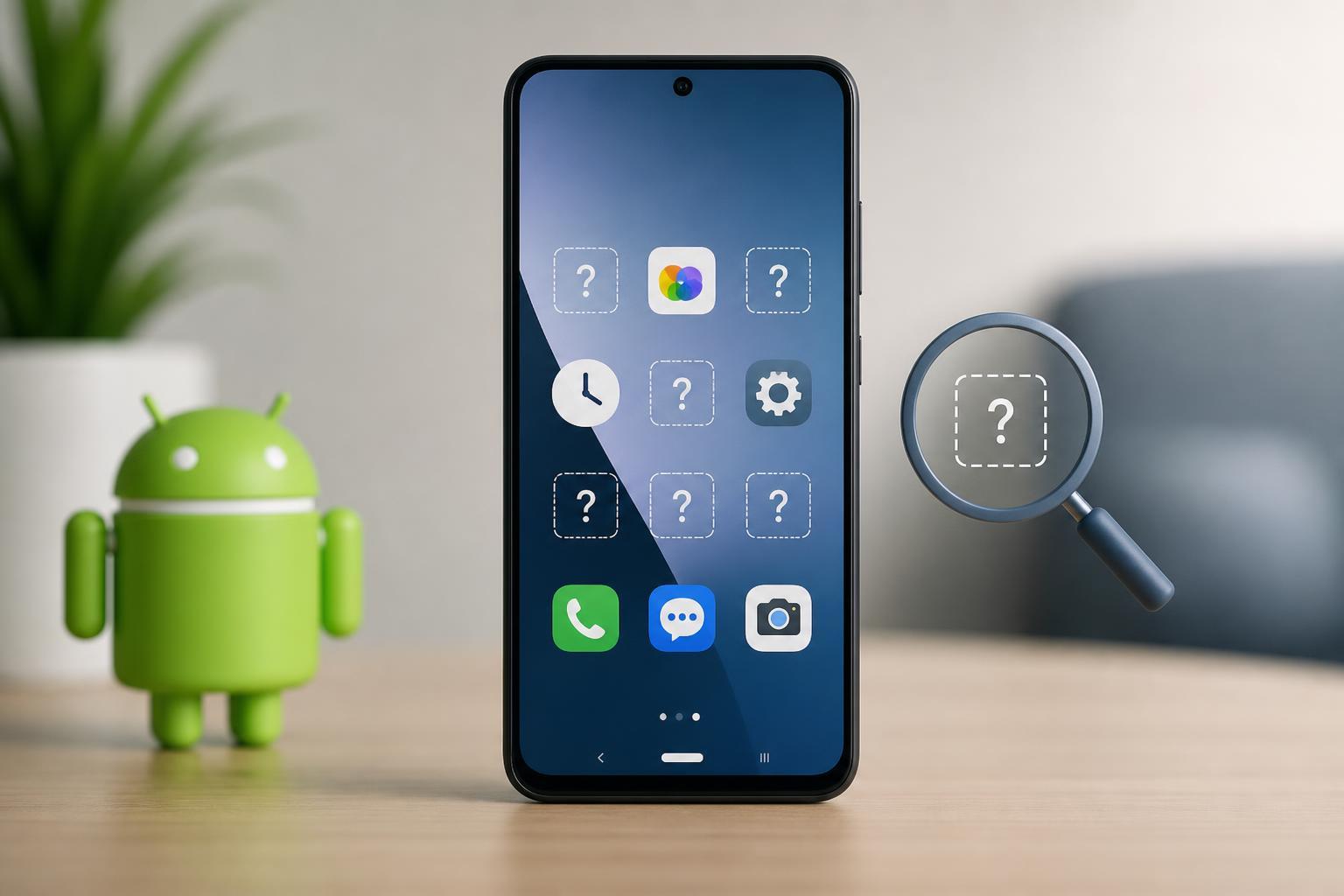
Missing app icons on Android can be confusing because the app may still be installed and working even though its icon has disappeared from the home screen or app drawer. In many cases, the problem is caused by launcher settings, hidden apps, or a disabled app rather than a serious system fault.
This guide walks through four effective ways to bring back missing app icons on Android and helps you narrow down which cause is most likely on your phone.
1. Check Whether the App Is Still Installed and Enabled
Before changing launcher settings, make sure the app has not been removed, disabled, or hidden by the system. If an app is disabled, Android often removes its icon from the app drawer and home screen.
- Open Settings on your Android phone.
- Go to Apps or Apps & notifications.
- Find the missing app in the list.
- If you see an Enable button, tap it.
- If the app is installed, open it once to confirm it launches normally.
2. Look for Hidden Apps or Home Screen Icon Settings
Many Android launchers let you hide apps from the app drawer or remove app icons from the home screen without uninstalling them. If the app is hidden, it may still appear in Settings but not where you expect it.
- Open your app drawer and look for a menu icon, usually three dots or a settings gear.
- Check for options such as Hide apps, Hidden apps, or Home screen settings.
- Search for the missing app in the hidden apps list and unhide it if needed.
- If the app icon was removed from the home screen only, open the app drawer, press and hold the app, then drag it back to the home screen.
3. Clear the Launcher Cache or Reset the Home Screen Layout
If several icons are missing, the launcher itself may be glitching. The launcher controls the home screen, app drawer, widgets, and icon placement, so a launcher problem can make icons disappear without affecting the apps themselves.
- Open Settings and go to Apps.
- Find your launcher app, such as One UI Home, Pixel Launcher, or your third-party launcher.
- Tap Storage or Storage & cache.
- Clear the launcher cache first.
- If the problem continues, look for a Reset home screen layout option inside the launcher settings, if available.
4. Reinstall the App or Refresh Its Shortcut
If only one app icon is missing and the app is still behaving strangely, reinstalling it can recreate the shortcut and fix broken app data. This is especially useful when the app was updated, moved, or partially restored from backup.
- Open the Play Store and search for the missing app.
- If the app is already installed, uninstall it and then install it again.
- After reinstalling, check whether the icon appears in the app drawer.
- If the icon still does not show, open the app drawer and manually add it to the home screen again.
How to Narrow Down the Cause
The pattern of missing icons can help you identify the real problem faster.
- One app missing: usually hidden, disabled, or broken app data
- Several apps missing: often launcher-related
- Apps missing only from the home screen: likely a shortcut issue
- Apps missing from both the home screen and app drawer: possibly hidden, disabled, or removed
When You May Need a Bigger Fix
If none of the four methods works, the issue may be caused by a launcher update, a corrupted system setting, or a broader Android problem. In that case, updating the launcher, checking for system updates, or resetting app preferences may help.
Final Check Before You Stop Troubleshooting
In most cases, missing Android app icons are caused by hidden apps, disabled apps, or launcher issues rather than app loss. Start with the simplest check, then move to launcher and reinstall steps if needed. That approach usually restores the icon without causing unnecessary changes to your phone.





