
If Zoom audio is not working on your Android phone, the problem is usually tied to microphone permissions, the wrong audio output, muted call settings, or a phone-level setting blocking sound. The good news is that most Zoom audio issues can be fixed without reinstalling the app or changing your account.
This guide walks through four reliable fixes, starting with the most common causes and moving to deeper checks if Zoom still cannot hear you or play sound.
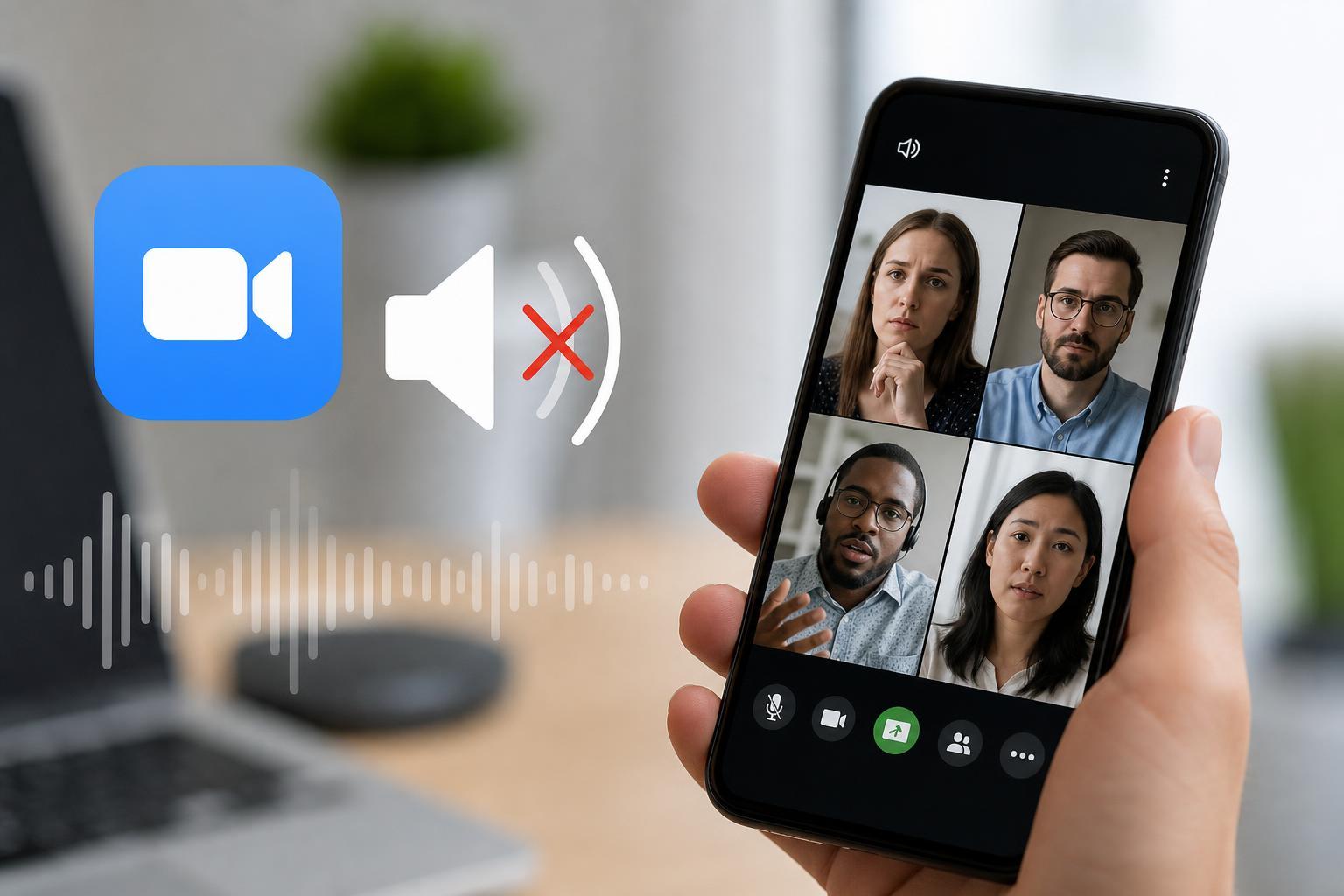
1. Check Zoom Microphone Permissions on Android
If Zoom cannot access your microphone, other people will not hear you even if your phone’s mic works in other apps. Android may block microphone access after an update, a permission change, or the first time you denied access.
- Open your Android Settings app.
- Tap Apps or Apps & notifications.
- Find and open Zoom.
- Tap Permissions.
- Make sure Microphone is allowed.
- If Bluetooth audio is also part of the problem, check whether Zoom has permission to use nearby devices or Bluetooth where your version of Android asks for it.
2. Make Sure Zoom Is Using the Right Audio Device
On Android, Zoom may send audio to a Bluetooth headset, wired headset, or the phone speaker instead of the device you are expecting. This can make it seem like the sound is broken when it is really going to the wrong output.
- During a Zoom meeting, tap the screen to show the controls.
- Tap Audio or the speaker icon if it appears.
- Check whether the meeting is using Speaker, Handset, or Bluetooth.
- If you are using headphones, disconnect them and test again.
- If you are using Bluetooth earbuds or a headset, turn Bluetooth off briefly and reconnect them to force Android to reset the audio route.
If you can hear others only through the earpiece or only through Bluetooth, the issue is usually the active audio route rather than Zoom itself.
3. Check In-Meeting Mute, Volume, and Android Sound Settings
It is easy to miss a mute button in Zoom or a low media volume level on Android. Zoom meeting audio depends on both the app controls and the phone’s media volume, so either one can cause silence.
- In the Zoom meeting, look for the microphone icon and make sure you are not muted.
- Use your phone’s volume buttons while in the meeting to raise media volume.
- Open Android sound settings and confirm media volume is not set too low.
- If Do Not Disturb is on, turn it off temporarily so it does not interfere with alerts or call behavior.
- If your phone has a separate setting for app sound or audio focus, make sure Zoom is allowed to play sound normally.
4. Clear Zoom Cache or Update the App
If permissions and audio settings are correct but Zoom still has no sound, the app itself may be stuck with a bad cache, an outdated build, or a temporary software conflict. Clearing the cache and updating Zoom can fix corrupted app behavior without deleting your account or meeting history.
- Open Android Settings and go to Apps.
- Select Zoom.
- Tap Storage or Storage & cache.
- Choose Clear cache first.
- If the problem continues, check the Google Play Store for a Zoom update.
- After updating, reopen Zoom and test audio in a meeting or test call.
If clearing the cache does not help, you can uninstall and reinstall Zoom as a stronger reset. This is often useful when the app has become unstable after a system update.
How to Narrow Down the Cause
If none of the four fixes work, use a quick test to figure out whether the issue is with Zoom, the phone, or the headset.
- Test the microphone in the Android Voice Recorder app or another calling app.
- Try a different pair of headphones or a different Bluetooth headset.
- Join a Zoom meeting using Wi-Fi and then mobile data to rule out a network-related audio problem.
- Test Zoom on another Android device if possible to see whether the issue follows your account or stays on the phone.
When to Suspect a Phone Hardware Issue
If your microphone fails in several apps, the issue may be with the phone hardware, a damaged headset jack, or a Bluetooth device that is not pairing correctly. If speakers work but the microphone does not, the phone may still be usable for listening but not for speaking in Zoom.
What This Fixes Most Often
For most Android users, Zoom audio problems come down to one of four things: blocked microphone permission, the wrong audio output, muted or low volume settings, or a buggy Zoom app installation. Checking those in order solves many cases quickly without more advanced troubleshooting.





