
If your Android phone shows that it’s connected to Wi‑Fi but websites, apps, and streaming services won’t load, the problem can come from the network, the router, or the phone itself. The good news is that this issue is usually fixable without advanced tools.
Below are four practical fixes, starting with the quickest checks and moving to more involved steps. Along the way, you’ll also learn how to tell whether the problem is your Android device or the Wi‑Fi network.
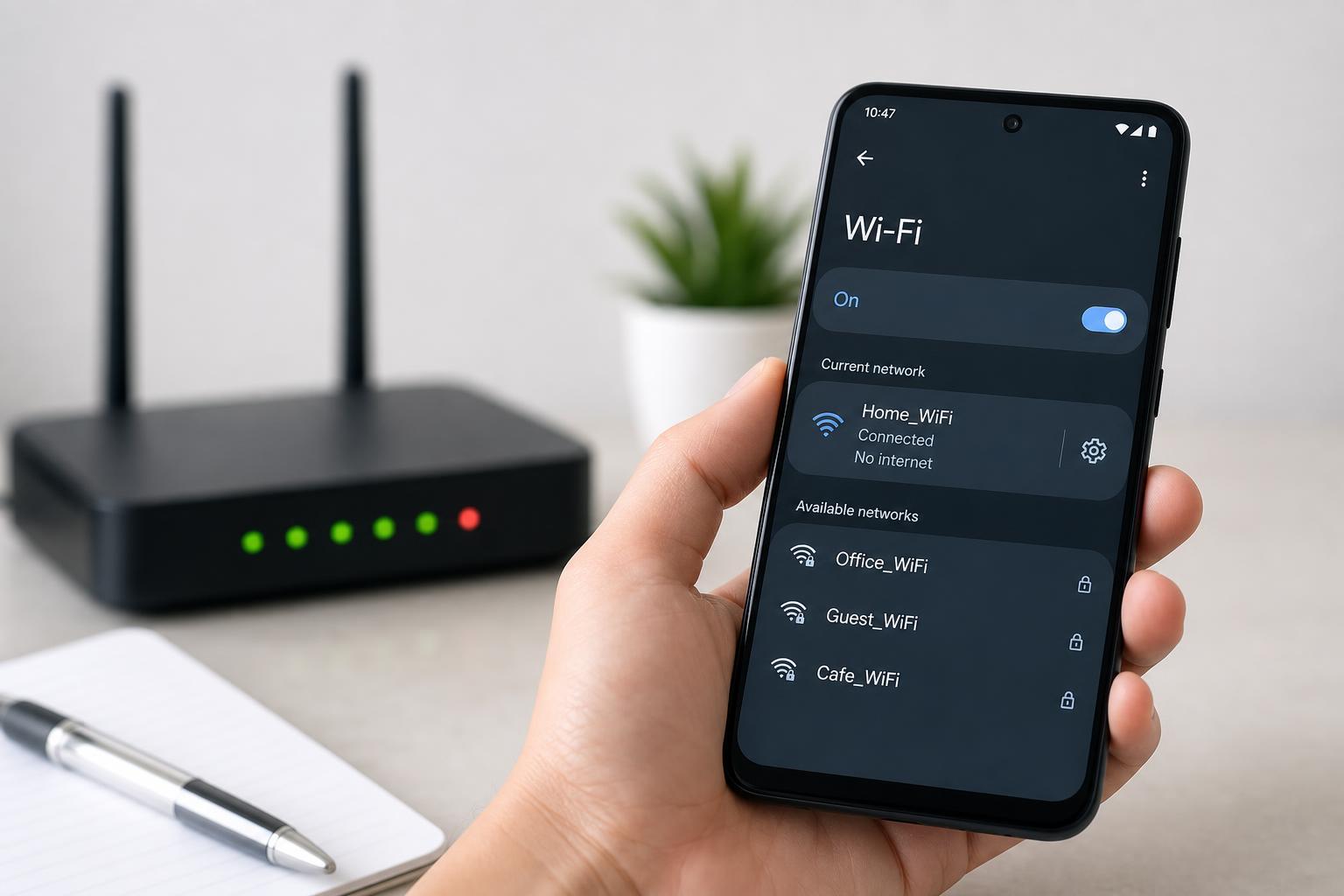
1. Confirm the Wi‑Fi Network Actually Has Internet Access
Before changing settings on your Android device, make sure the Wi‑Fi network is working for other devices. A phone can connect to a router successfully and still have no internet if the modem is offline, the ISP is having trouble, or the router has lost its upstream connection.
- Try the same Wi‑Fi network on another phone, tablet, or laptop.
- If every device has no internet, the issue is likely with the router, modem, or internet service.
- If other devices work normally, the problem is more likely on the Android device itself.
- Check the router’s status lights if you can. A red, amber, or blinking WAN/Internet light can point to a connection problem.
If the network is down, rebooting the modem or router may help, but only if the internet service itself is available again. If the outage is on your ISP’s side, you may need to wait it out.
2. Forget the Wi‑Fi Network and Reconnect
Sometimes Android keeps a bad saved connection profile for a network. Forgetting the network clears the saved password and connection details, which can fix problems caused by a stale or corrupted profile.
- Open Settings on your Android device.
- Go to Network & internet or Connections, depending on your phone model.
- Tap Wi‑Fi and select the affected network.
- Choose Forget, Remove, or Forget network.
- Reconnect to the network and enter the Wi‑Fi password again.
This step is one of the simplest fixes and often solves cases where the phone shows Wi‑Fi connected, but apps still cannot reach the internet.
3. Check Private DNS, VPN, and Proxy Settings
Android traffic can be interrupted by network features that redirect or filter connections. A private DNS setting, VPN app, or proxy configuration can sometimes break internet access even though Wi‑Fi itself is connected.
- Open Settings and search for Private DNS.
- If it is set to a custom hostname, switch it to Automatic or Off.
- Go to Settings and check for any active VPN connection. Disconnect it temporarily and test the internet again.
- In the Wi‑Fi network details, look for Proxy settings and make sure they are set to None unless you specifically need a proxy.
4. Reset Network Settings on Android
If the phone still connects to Wi‑Fi but cannot access the internet, a network settings reset can clear deeper configuration problems. This usually resets saved Wi‑Fi networks, Bluetooth pairings, and mobile network settings without deleting personal files like photos or apps.
- Open Settings.
- Look for System, General management, or a similar section.
- Tap Reset options or Reset.
- Choose Reset Wi‑Fi, mobile & Bluetooth or Reset network settings.
- Confirm the reset, then reconnect to your Wi‑Fi network and test again.
This is a strong fix when the problem started after a system update, a new VPN app, a router change, or a settings change you cannot easily undo.
Other Checks Worth Trying
If the four main fixes do not solve the problem, these quick checks can help narrow it down further:
- Toggle Airplane mode on and off to force the phone to reconnect to wireless networking.
- Move closer to the router in case weak signal quality is causing partial connectivity.
- Check whether date and time are set correctly, since incorrect time can break some secure connections.
- Update Android and any affected apps, especially if the issue started after an update or app installation.
- Try a different Wi‑Fi network to see whether the problem follows the phone or stays with one router.
How to Tell What’s Actually Broken
A few symptoms can point you in the right direction. If every device on the same Wi‑Fi network has no internet, the router, modem, or ISP is the likely cause. If only one Android device is affected, the problem is usually a phone setting, a corrupted network profile, or a VPN/DNS issue.
- Only one phone affected: focus on Android settings and saved network data.
- All devices affected: check the router, modem, and internet service.
- Wi‑Fi works on one network but not another: the phone may have a settings or compatibility issue.
- Internet works after disabling VPN or Private DNS: the problem is likely caused by that feature.
When to Contact Your ISP or Use a Factory Reset
If your Android device still shows Wi‑Fi connected but no internet after forgetting the network, checking VPN or DNS settings, and resetting network settings, the issue may be deeper than a normal settings problem. At that point, contact your internet provider if multiple devices are affected, or contact the phone manufacturer if the issue appears to be limited to the device.
A factory reset should be a last resort for the phone itself. It can fix stubborn software issues, but it also erases your data and requires full setup again, so it is usually not necessary unless other troubleshooting steps fail.





