
If WhatsApp is not working on your Wear OS watch, the problem is usually caused by a connection issue, a missing permission, an outdated app, or a sync problem between the watch and your phone. In many cases, you can get it working again without factory resetting the watch.
The steps below focus on the most common fixes for Wear OS watches so you can quickly narrow down whether the issue is on the watch, the phone, or the WhatsApp setup itself.
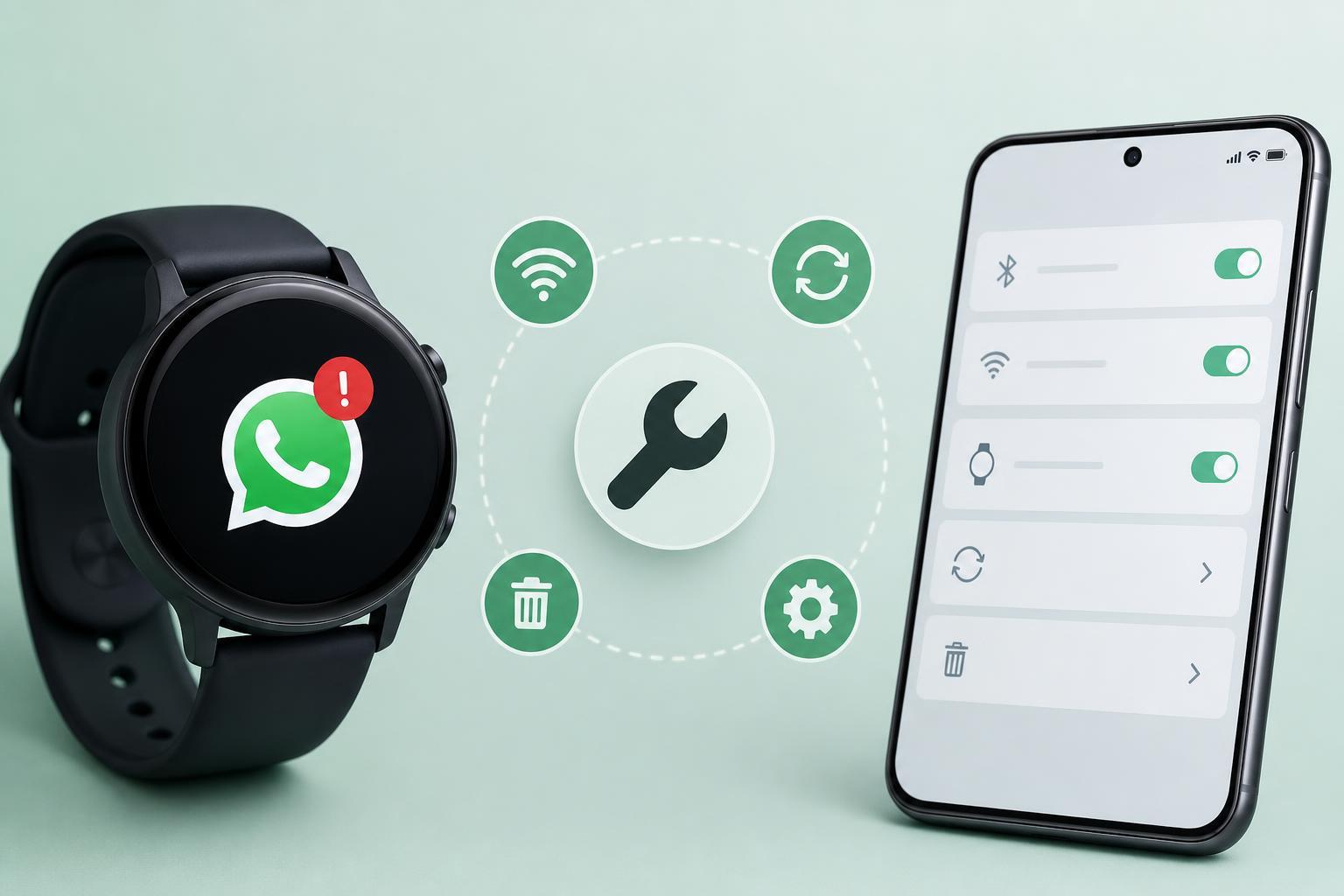
1. Check That WhatsApp Is Set Up Correctly on the Phone and Watch
WhatsApp on Wear OS depends on the phone app and the watch app working together. If the phone app is not signed in correctly, notifications are disabled, or the watch is not properly paired, WhatsApp may not appear or may stop receiving messages.
- Open WhatsApp on your phone and make sure it is working normally there first.
- Confirm that your Wear OS watch is connected to the same phone in the Wear OS app or Bluetooth settings.
- Check that WhatsApp notifications are allowed on your phone for both the app and the system notification settings.
- Open the Play Store on the watch and search for WhatsApp or WhatsApp-related Wear OS support to confirm the app is installed and up to date.
- If you recently changed phones, sign back into WhatsApp on the new device and recheck the watch connection.
2. Fix Notification and Permission Problems
If WhatsApp opens on the watch but does not show alerts, the issue is often notification permissions. Wear OS watches also need background access to stay in sync, and Android may restrict that after an update or battery optimization change.
- On your phone, go to Settings and open Apps or Notifications.
- Find WhatsApp and make sure notifications are enabled.
- Check that lock screen, banner, and sound notifications are allowed if you want alerts to appear promptly.
- Open battery settings and make sure WhatsApp is not being heavily restricted by battery optimization.
- On the watch, check the app permissions and confirm that notifications are allowed for the WhatsApp app if that option is available.
3. Update or Reinstall WhatsApp and Related Wear OS Components
An outdated app version can cause login problems, missing chat previews, or crashes on Wear OS. If the app was working before and suddenly stopped, updating WhatsApp and the watch software is a practical next step.
- Open the Play Store on your phone and update WhatsApp if an update is available.
- Open the Play Store on the watch and update WhatsApp or any related companion app.
- Check for Wear OS system updates in the watch settings and install them if available.
- If the app still fails, uninstall WhatsApp from the watch and install it again from the Play Store.
- After reinstalling, open the app once and allow any prompts for permissions or account access.
4. Resync the Watch or Clear the App Cache
If WhatsApp is installed and permissions look correct but the app still acts strangely, the problem may be a corrupted cache or a sync glitch. Clearing cached data can often fix stuck loading screens or messages that refuse to refresh.
- On the watch, go to Settings and open Apps.
- Find WhatsApp and open its storage or app info page.
- Clear the cache first if that option is available.
- If the problem continues, clear app data only if you are prepared to set up the app again.
- On the phone, disconnect and reconnect the watch in the Wear OS app if sync remains unreliable.
When WhatsApp Still Does Not Work on Wear OS
If none of the four fixes solve the issue, the problem may be tied to the specific watch model, a temporary service issue, or a Wear OS version limitation. In that case, check whether WhatsApp works on the phone, confirm the watch is fully updated, and test the connection with another app that uses notifications.
- Verify that the watch is still paired and online
- Check whether other notification-based apps are working on the watch
- Look for pending system updates on the phone and watch
- Remove and re-add the watch only if simpler fixes do not help
- Contact WhatsApp support or the watch maker if the app fails after every update





