
If WhatsApp’s camera suddenly looks zoomed in, the problem is usually caused by an app setting, a camera mode issue, or a device-side glitch rather than a broken camera. The good news is that in most cases you can fix it without reinstalling everything or replacing your phone.
This guide walks through four practical ways to fix the problem, starting with the simplest checks and moving to more reliable troubleshooting steps if the zoomed-in view keeps coming back.
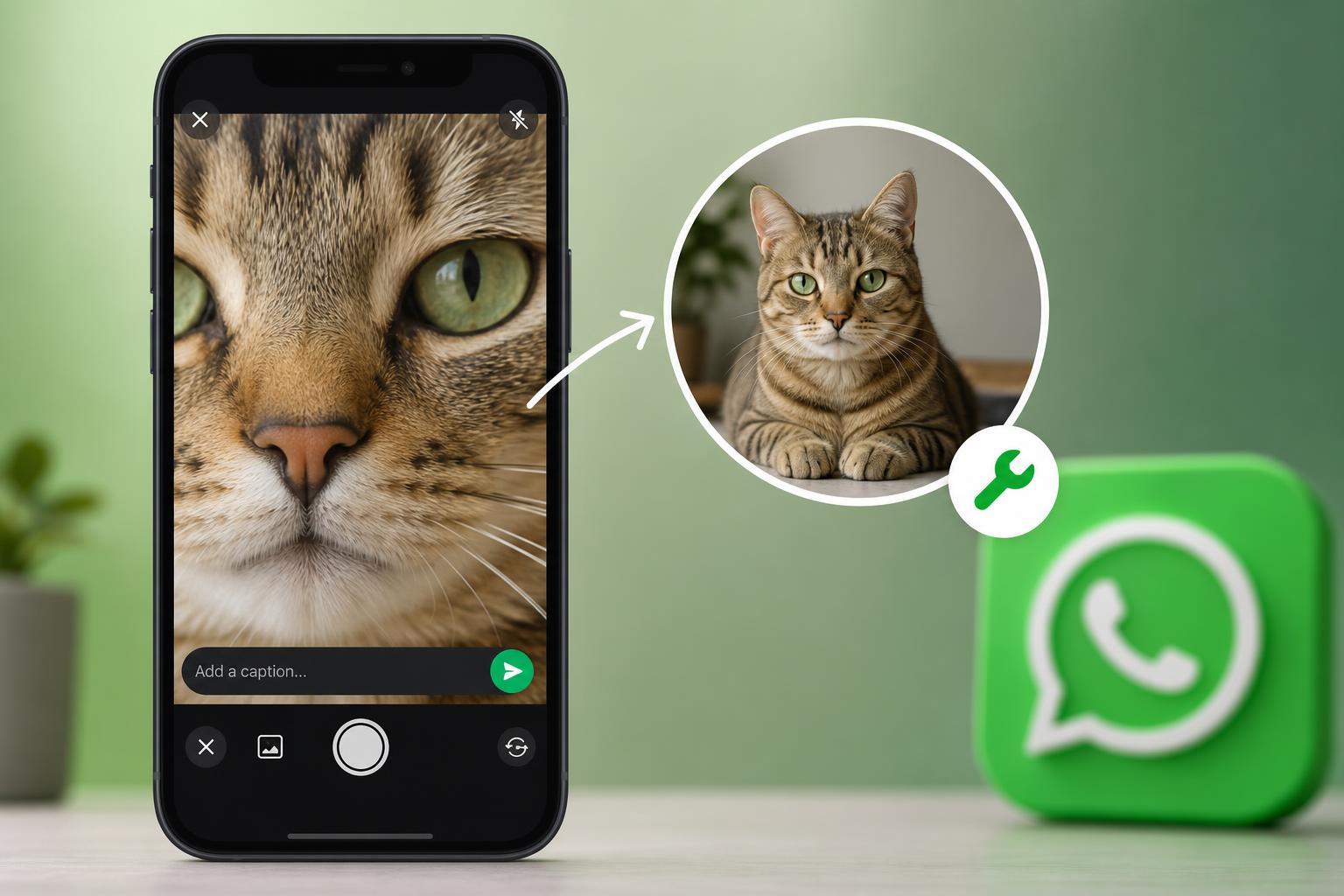
1. Check for Zoom or Aspect Ratio Settings Inside WhatsApp
The first thing to check is whether the WhatsApp camera itself is using a zoomed preview or a crop mode. In some cases, the camera view can look enlarged because the app is opening the wrong lens view, or because the preview is matching a different aspect ratio than your screen.
- Open WhatsApp and go to the camera screen from a chat or by tapping the camera icon.
- Look for any zoom controls, lens toggles, or aspect ratio options on the preview screen.
- If the camera is already zoomed, use the pinch gesture to zoom out if your device supports it.
- Switch between the front and rear cameras to see whether the issue affects both lenses or only one.
If the view returns to normal after switching lenses, the issue may be limited to one camera mode rather than the whole app.
2. Close WhatsApp and Reopen the Camera
Sometimes the camera preview gets stuck in an odd state after switching apps, using the camera in another app, or receiving a background system interruption. Fully closing WhatsApp and opening it again can reset the camera session.
- Close WhatsApp completely from the recent apps screen.
- Reopen WhatsApp and go back to the camera.
- Test both the photo and video modes if available.
- If the zoomed view only appears after a specific action, repeat that action to see whether you can reproduce the problem.
3. Check Camera Permissions and Phone Camera Settings
WhatsApp relies on your phone’s camera system, so camera permissions and device-level camera settings can affect how the preview looks. If permissions are restricted or the camera app itself is using an unusual mode, WhatsApp may inherit that behavior.
- Open your phone’s Settings app.
- Find WhatsApp in the app list and confirm that Camera permission is enabled.
- On Android, also check whether WhatsApp has permission to use the microphone and storage if you plan to send videos or saved media.
- Open your phone’s built-in Camera app and check whether it also looks zoomed in or cropped.
- If the built-in camera is zoomed too, look for a zoom level, portrait mode, or lens selection that may have been left active.
If the native camera app is normal but WhatsApp is not, the problem is probably isolated to WhatsApp rather than the phone itself.
4. Update or Clear WhatsApp’s Cache
An outdated app version or corrupted temporary data can cause camera display bugs, including a preview that appears overly zoomed. Updating WhatsApp is usually the safest first step. If that does not help on Android, clearing the cache can remove damaged temporary files without deleting your chats.
- Open the Google Play Store or App Store and check for a WhatsApp update.
- Install the update if one is available, then reopen WhatsApp and test the camera.
- If you are on Android and the problem continues, go to Settings > Apps > WhatsApp > Storage.
- Tap Clear cache, then reopen WhatsApp and test again.
- If the issue still appears, consider backing up your chats before using more invasive repair steps.
When the Problem Is Probably the Phone, Not WhatsApp
If the camera looks zoomed in everywhere — in WhatsApp, the built-in camera app, video calls, and other apps — then the issue is likely with the phone’s camera system rather than WhatsApp itself. That can happen after a system update, a lens switch problem, or an accessibility or camera mode setting that stays enabled in multiple apps.
- The zoomed view appears in other camera apps too
- Only one lens works normally, while another looks cropped or enlarged
- The problem started after a phone update or camera-setting change
- The camera seems stuck in portrait, macro, or digital zoom mode
What to Try If None of These Fixes Work
If WhatsApp still shows a zoomed-in camera after checking settings, permissions, and updates, the next best step is to test the app on another device if possible, or compare it against the phone’s native camera more carefully. That helps confirm whether the issue follows the app or stays with the phone.
- Test the rear and front cameras separately
- Remove any phone case or lens cover that may interfere with the camera
- Check whether accessibility features or display scaling settings are affecting the preview
- Back up WhatsApp and reinstall the app only if simpler fixes fail
Quick Fix Order to Follow
If you want the fastest path, try the fixes in this order: first check zoom or lens settings in WhatsApp, then reopen the app, then verify camera permissions and the built-in camera app, and finally update or clear WhatsApp’s cache. That sequence usually solves the issue without wasting time on deeper troubleshooting too early.





