
If your Android phone keeps showing a “storage space running out” alert, the problem is usually not the warning itself — it is that the phone is genuinely close to full. When storage gets too low, apps may slow down, updates can fail, photos may not save properly, and the phone can become less reliable overall.
The good news is that you usually do not need a factory reset. In most cases, you can free up space quickly by removing large files, clearing app data that has built up over time, and moving content off the device.
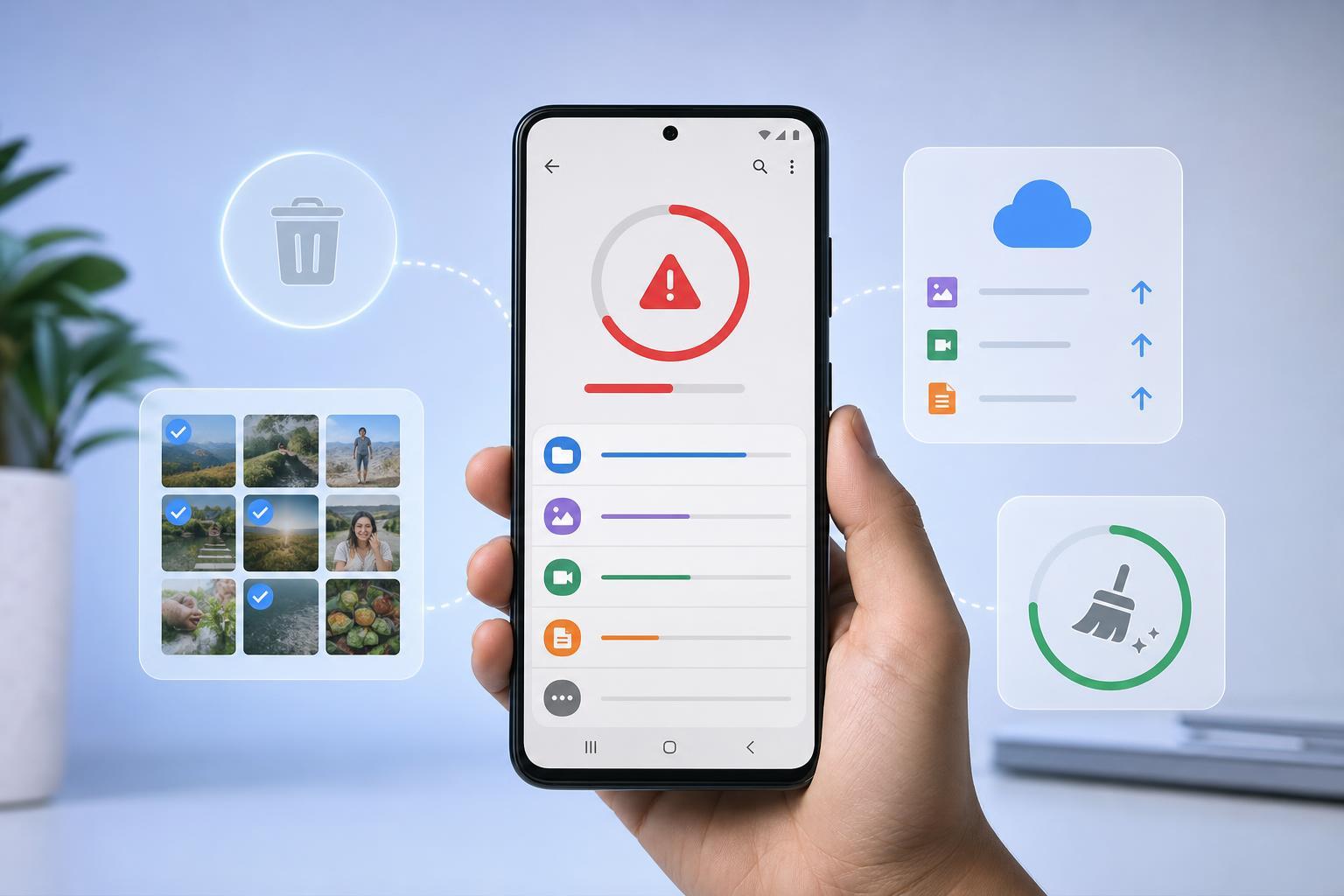
1. Check What Is Actually Using the Space
Before deleting anything, it helps to see what is filling your storage. On many Android phones, large videos, downloaded files, photos, apps, and cached data are the biggest space users. Knowing the main culprit makes the cleanup much faster.
- Open Settings on your Android phone.
- Tap Storage, Device care, or a similar storage menu depending on your phone brand.
- Wait for the storage breakdown to load.
- Look for the largest categories, such as Apps, Photos and videos, Audio, or Other files.
2. Delete or Move Large Files You No Longer Need
Large media files are often the easiest way to recover meaningful storage quickly. Videos, screenshots, downloaded movies, offline music, and old files from messaging apps can take up much more space than people expect.
- Delete old videos and duplicate photos you do not need.
- Remove unused downloads from the Downloads folder.
- Clear out large files sent through messaging apps such as WhatsApp, Telegram, or Messenger.
- Move important photos and videos to a cloud service, SD card, or computer if your phone supports it.
If you use Google Photos or a similar backup service, make sure the items are backed up before deleting them from the phone. That way you keep the files without keeping them stored locally.
3. Clear Cached Data and Unneeded App Files
Apps build up cached data to load faster, but that cache can grow quite large over time. Social media apps, browsers, streaming apps, and shopping apps are common storage offenders.
- Open Settings and go to Apps or Apps & notifications.
- Select a large app you rarely use or one that stores a lot of media.
- Open Storage and cache.
- Tap Clear cache.
If an app is still taking up an unusually large amount of space after clearing the cache, check whether it also stores offline downloads or local media. Some apps have their own storage settings where you can remove saved content separately.
4. Uninstall Apps You No Longer Use
Unused apps can quietly consume a surprising amount of space, especially games and apps that store downloaded content locally. If you have installed several apps for one-time use, removing them can quickly solve the low-storage warning.
- Open Settings > Apps, or press and hold an app icon from the home screen.
- Review apps you have not opened in months.
- Uninstall apps you no longer need.
- If you are unsure about an app, check its storage size before removing it.
Some Android phones also offer a built-in feature that suggests rarely used apps for removal. This can be a useful shortcut if you do not want to review everything manually.
Other Fixes That Can Help
- Empty the trash or recently deleted folder in your Gallery or Files app, since deleted items may still be stored there for a while.
- Move photos and videos to cloud storage or a PC if you want to keep them without storing them on the phone.
- Delete old message attachments from chat apps if they have built up over time.
- If your phone has a microSD card slot, move supported media or files to the card to reduce internal storage use.
How to Stop the Alert from Coming Back
Once you clear enough space, try to keep some breathing room free. Android works best when storage is not nearly full all the time. If possible, leave a buffer instead of filling the phone to the limit again.
- Back up photos and videos regularly.
- Remove downloads after you have used them.
- Check large apps every few months.
- Avoid keeping duplicate media files on the device.
- Clear cache occasionally if certain apps grow unusually large.
When the Problem May Be More Than Storage
If your phone still shows low storage after you have removed a lot of content, the issue may be caused by hidden app data, a nearly full trash folder, or files stored in multiple places. In rare cases, the storage reading may not update immediately, but usually a deeper cleanup is needed rather than a reboot.
If you have deleted plenty of files and the phone still acts as though storage is full, check for offline downloads in music, video, map, and social apps, since those can be easy to overlook.





