
Bluetooth that keeps disconnecting on Android can be frustrating, especially when you are using headphones, a car stereo, a smartwatch, or a game controller. The problem is usually caused by power-saving settings, a bad pairing record, wireless interference, or a software issue rather than a permanently broken device.
This guide covers four practical fixes to try first, plus a few checks that can help you figure out which cause is most likely.
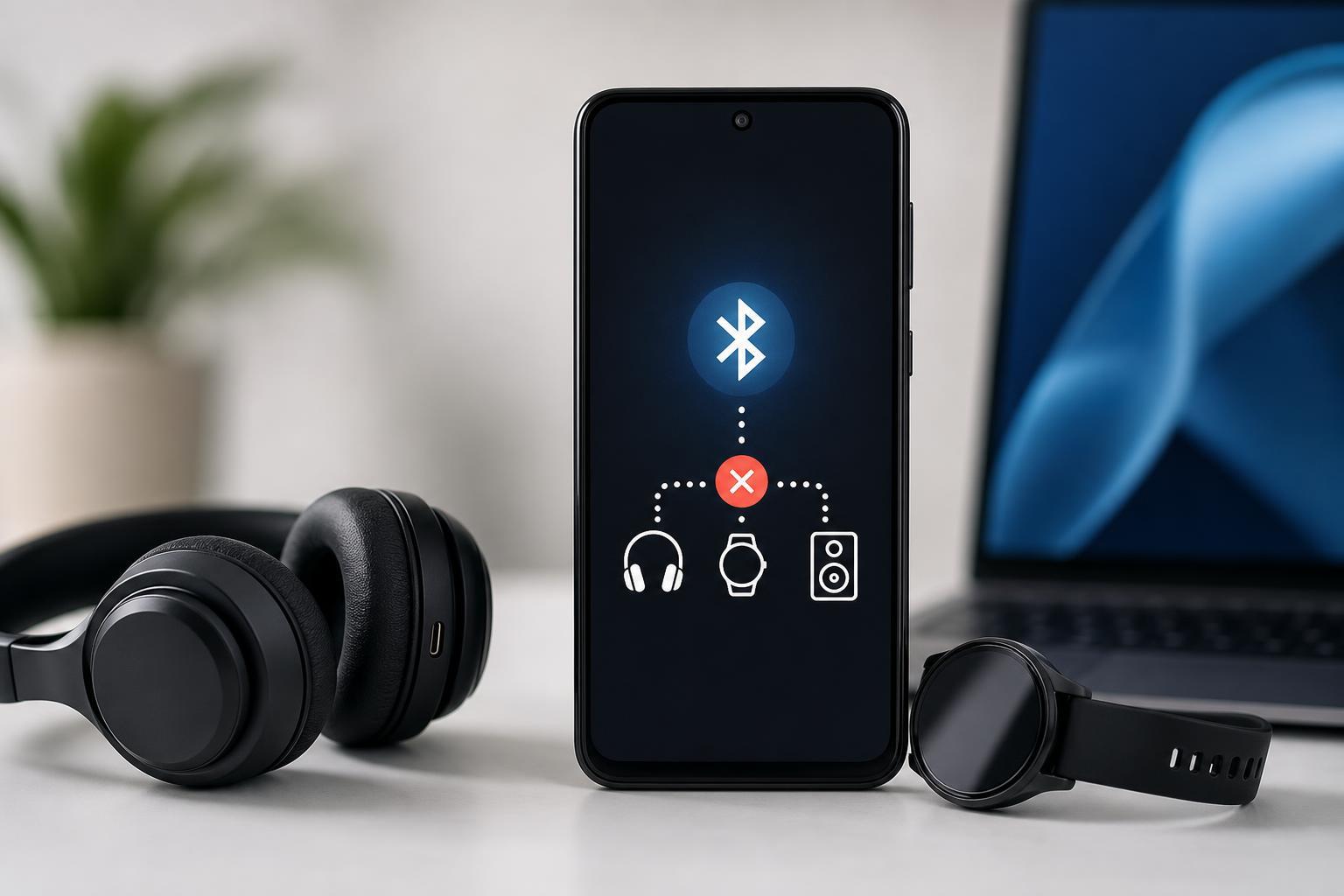
1. Reconnect the Device and Remove the Old Pairing
If Bluetooth was working before and now drops repeatedly, start by deleting the saved pairing and connecting again. A corrupted pairing record is one of the most common reasons a device connects briefly and then disconnects.
- Open Settings and go to Bluetooth or Connected devices.
- Find the device that keeps disconnecting.
- Tap the gear icon or device name, then choose Forget, Unpair, or Remove.
- Turn Bluetooth off and back on.
- Put the accessory back into pairing mode and pair it again from scratch.
2. Turn Off Battery Optimization for the Bluetooth App or Accessory App
Android battery-saving features can interfere with accessories that rely on background communication. This is especially common with earbuds apps, fitness trackers, smartwatches, and car connection apps.
- Open Settings and go to Apps.
- Find the app associated with the device, if it has one.
- Open Battery or Battery usage.
- Set the app to Unrestricted, Not optimized, or Allow background activity, depending on your phone.
- If you do not use a companion app, check your phone's Battery Saver or Adaptive Battery settings and turn them off temporarily to test the connection.
3. Check for Interference and Distance Problems
Bluetooth uses short-range radio signals, so walls, crowded wireless environments, and distance can all cause disconnects. This is more likely if the device drops out only in certain rooms, in the car, or when your phone is in a pocket or bag.
- Stay within a few feet of the accessory while testing.
- Move away from Wi-Fi routers, microwaves, USB 3.0 hubs, and other devices that can create interference.
- Remove thick phone cases or metal accessories that may block the signal.
- Test the device in a different location to see whether the problem follows the environment or the phone.
4. Update Android and the Accessory Firmware
Software bugs can cause Bluetooth instability, especially after a major Android update or after the accessory manufacturer releases new firmware. Updating both sides can fix compatibility problems and connection drops.
- Open Settings and check for Android system updates.
- Install any pending updates and let the phone finish restarting if required.
- Open the companion app for your accessory, if it has one, and look for firmware updates.
- If no app exists, check the manufacturer's support page for update instructions.
- After updating, forget and re-pair the device if the problem still continues.
Other Checks That Can Help
If the four main fixes do not solve the issue, a few additional checks can narrow it down further.
- Test the Bluetooth accessory with another phone or tablet to see whether the accessory is the problem.
- Try a different Bluetooth device on your phone to see whether the issue affects all accessories or only one.
- Clear the Bluetooth app cache if your phone allows it through system app settings.
- Reset network settings if Bluetooth problems also happen with Wi-Fi or mobile data, since this can repair broken wireless system settings.
How to Narrow Down the Cause Quickly
A few simple clues can help you identify the likely cause before you spend too much time troubleshooting.
- Disconnects happen only with one accessory: the accessory or its firmware is likely the issue.
- Disconnects happen with every Bluetooth device: the phone, Android settings, or system software is more likely.
- Disconnects happen only when the phone is far away: range or interference is the main suspect.
- Disconnects started after an Android update: a software compatibility issue is more likely.
Which Fix Should You Try First?
For most people, the best order is to forget and re-pair the device first, then check battery optimization, then test for interference, and finally install updates. Those steps solve many Android Bluetooth dropouts without needing a full reset or more advanced troubleshooting.





