
If your Android phone or tablet won’t rotate the screen automatically, the cause is usually a setting, a stuck sensor, or an app that is forcing a fixed orientation. The good news is that most auto-rotate problems can be fixed without advanced troubleshooting.
This guide walks through four practical fixes, starting with the simplest checks and moving to the most likely causes when rotation still does not work.
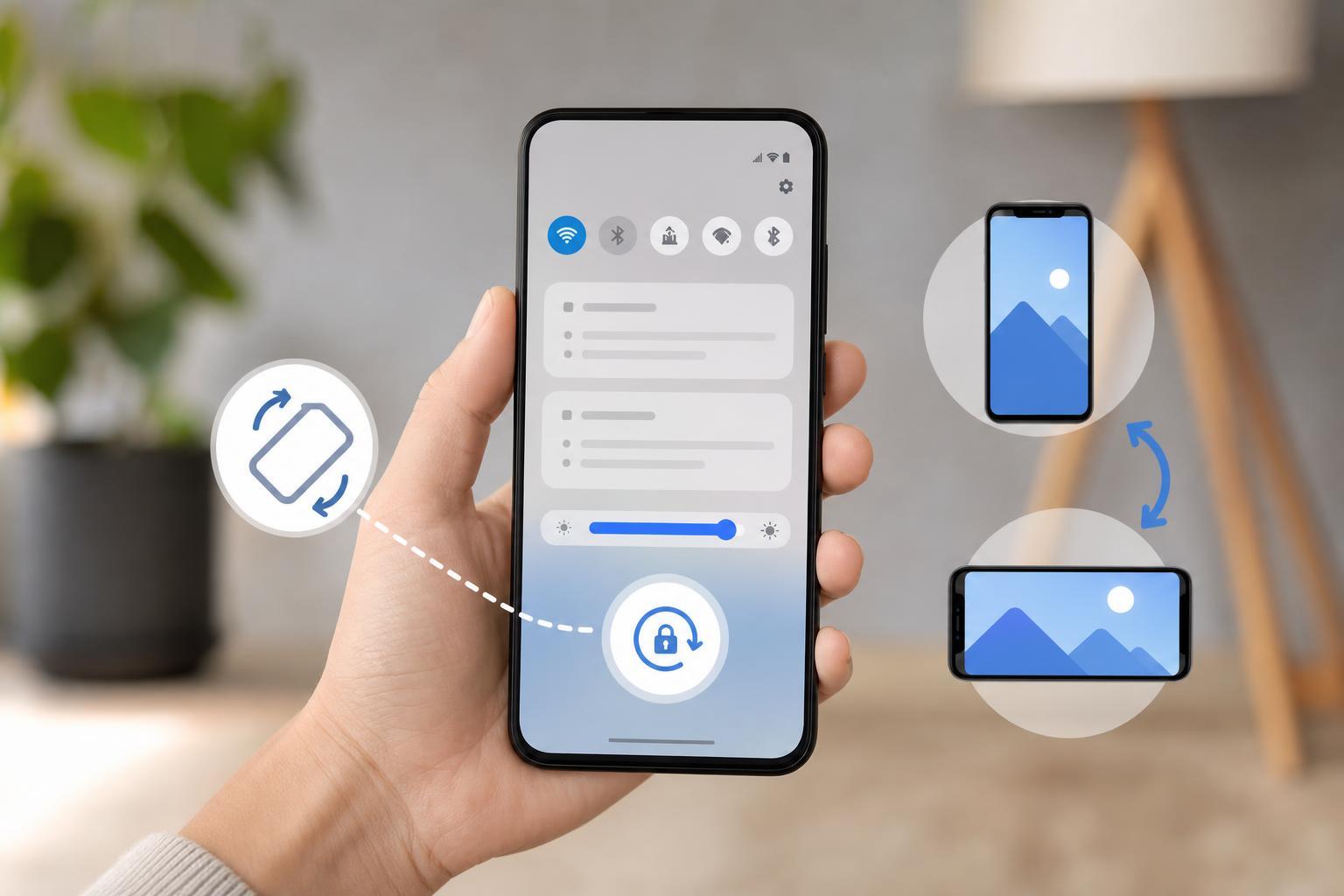
1. Check Whether Auto-Rotate Is Actually Enabled
Android devices can easily look like auto-rotate is broken when the feature is simply turned off. The quickest place to check is the Quick Settings panel.
- Swipe down from the top of the screen to open Quick Settings.
- Look for Auto-rotate, Rotate, or Portrait mode.
- If the phone is locked to Portrait, tap the tile to enable automatic rotation.
- Open an app like Photos, Chrome, or YouTube and turn the phone sideways to test it.
2. Make Sure Your Phone Is Not Blocking Rotation in a Specific App
Some apps do not follow the system rotation setting. Video players, reading apps, games, and some social apps may force portrait mode or only rotate in certain screens.
- Test rotation in more than one app, such as Chrome, Settings, and the Photos app.
- If rotation works in some apps but not others, the app itself may be controlling the orientation.
- Look for an in-app rotation lock, full-screen setting, or display mode option.
- Update the app if the developer has fixed rotation-related bugs.
3. Calibrate or Reset the Motion Sensors
Auto-rotate depends on the phone’s accelerometer and gyroscope. If these sensors are reading movement incorrectly, the screen may not rotate even when the setting is enabled.
- Open the Phone app or Settings app and check whether your device has a built-in sensor calibration or motion settings page.
- If your phone includes a calibration tool, follow the prompts while placing the device on a flat surface.
- Remove thick cases, magnetic accessories, or mounts that may interfere with sensor behavior.
- Test rotation again after calibration or after temporarily removing accessories.
4. Update Android and Restart the Device
If the setting looks correct and the sensors seem fine, a software issue may be interfering with rotation. A system update can fix bugs, and a full power cycle can clear temporary glitches.
- Go to Settings and open System, Software update, or About phone, depending on your device.
- Install any available Android or security updates.
- After updating, turn the phone fully off and back on.
- Test auto-rotate again in a few different apps.
When Auto-Rotate Still Won’t Work
If none of these fixes help, the issue may be hardware-related. A damaged accelerometer, a failing gyroscope, or moisture damage can prevent the phone from detecting orientation properly.
- Rotation never works in any app, even after checking settings
- The phone behaves inconsistently when tilted
- Other motion-based features also seem broken
- The problem started after the device was dropped or exposed to liquid
At that point, the best next step is to contact the manufacturer or a repair shop and mention that screen rotation is not responding. That gives them a useful clue that the motion sensors may need inspection.





