
If Face Recognition on your Samsung Galaxy phone suddenly stops unlocking the device, the cause is often something simple: the front camera is blocked, the face data no longer matches how you look, or a software setting is interfering with detection. The good news is that this is usually fixable without advanced troubleshooting.
This guide walks through four practical fixes for Samsung Galaxy phones and tablets, starting with the most likely causes and moving to deeper resets only when needed.
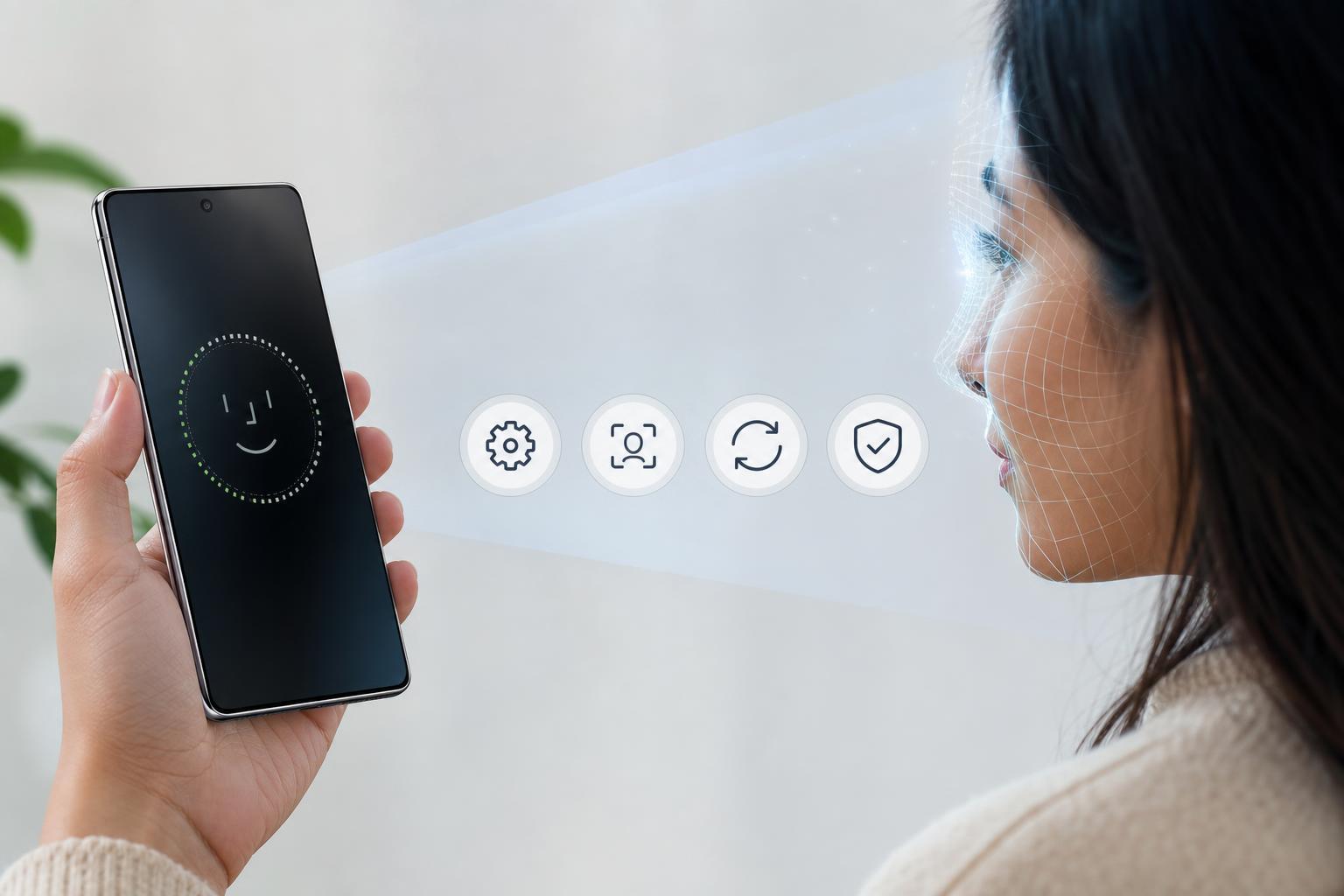
1. Check the Front Camera and Face Unlock Setup
Before changing settings, make sure the phone can actually see your face clearly. Face recognition depends on the front camera, so even a small obstruction can stop it from working properly.
- Wipe the front camera area with a soft, clean cloth.
- Remove anything covering the top of the screen, including some thick screen protectors or misaligned cases.
- Make sure you are holding the phone at a normal angle and at a reasonable distance.
- Try face unlock in a bright room instead of very dim light.
- If you recently changed your appearance significantly, the saved face data may no longer be accurate.
Also check that Face Recognition is actually enabled in your phone’s security settings. On many Galaxy devices, it can be turned off after a setup change or security update.
- Open Settings.
- Tap Security and privacy or Lock screen and security, depending on your model.
- Select Face recognition.
- Confirm that Face recognition is set up and enabled.
- If needed, remove the current face data and set it up again.
2. Re-register Your Face Data
Face recognition can become less reliable if the original scan was incomplete or if your appearance has changed enough that the phone struggles to match your face consistently. Re-registering the face data often fixes repeated unlock failures.
- Open Settings and go to your face unlock settings.
- Select Remove face data or Delete face data.
- Enter your PIN, pattern, or password if prompted.
- Set up Face Recognition again from scratch.
- Follow the on-screen instructions carefully and scan your face in good lighting.
When re-registering, keep the phone at the recommended distance and do not move too quickly. If your phone offers options such as staying more centered in the frame, use them. A better scan usually means more reliable unlocks later.
3. Update Your Software and Restart Face Unlock Services
Samsung updates can improve camera behavior, security features, and biometric performance. If Face Recognition stopped working after an update or started failing randomly, a system update may be the fix.
- Open Settings.
- Tap Software update.
- Select Download and install.
- Install any available updates.
- After the update, test Face Recognition again.
If your phone is already fully updated, a settings-level refresh can still help. Turning Face Recognition off and setting it up again after the update can clear out a bad configuration without affecting the rest of your phone.
4. Clear Camera App Issues or Reset Face Unlock
If the front camera app or biometric service is glitching, Face Recognition may fail even when your face is registered correctly. This is especially likely if the camera also behaves oddly in selfies or video calls.
- Open the Camera app and test the front camera.
- If selfies are blurry, frozen, or not opening correctly, close any apps that may be using the camera.
- Go to Settings > Apps > Camera and clear the cache if available.
- If Face Recognition still fails, remove the face data and add it again.
- Test Face Recognition after each step so you know which change helped.
How to Narrow Down the Problem
A few clues can tell you whether you are dealing with a simple setup issue or a deeper hardware problem.
- Face unlock works sometimes but not others: lighting, angle, or face data quality is likely the issue.
- The front camera also has problems in other apps: the camera app or phone software may be at fault.
- Face recognition never works at all after setup: the face scan may need to be redone, or the camera may be blocked or faulty.
- The problem started after a recent update: a software glitch or changed setting is more likely than a hardware failure.
When to Suspect a Hardware Problem
If Face Recognition still does not work after checking the camera, re-registering your face, and updating the phone, the front camera or related sensors may have a hardware issue. That is less common, but it becomes more likely if the front camera fails in the Camera app too.
At that point, contact Samsung support or visit an authorized repair center, especially if the phone has been dropped, exposed to moisture, or recently repaired.





