
Recording on Snapchat usually means holding the capture button the whole time, which is awkward for longer clips, selfies, or videos where you want both hands free. The good news is that there are a few practical ways to record without keeping your finger on the button.
The exact options available can vary a little depending on your phone model and Snapchat version, but these methods cover the most useful hands-free recording approaches.
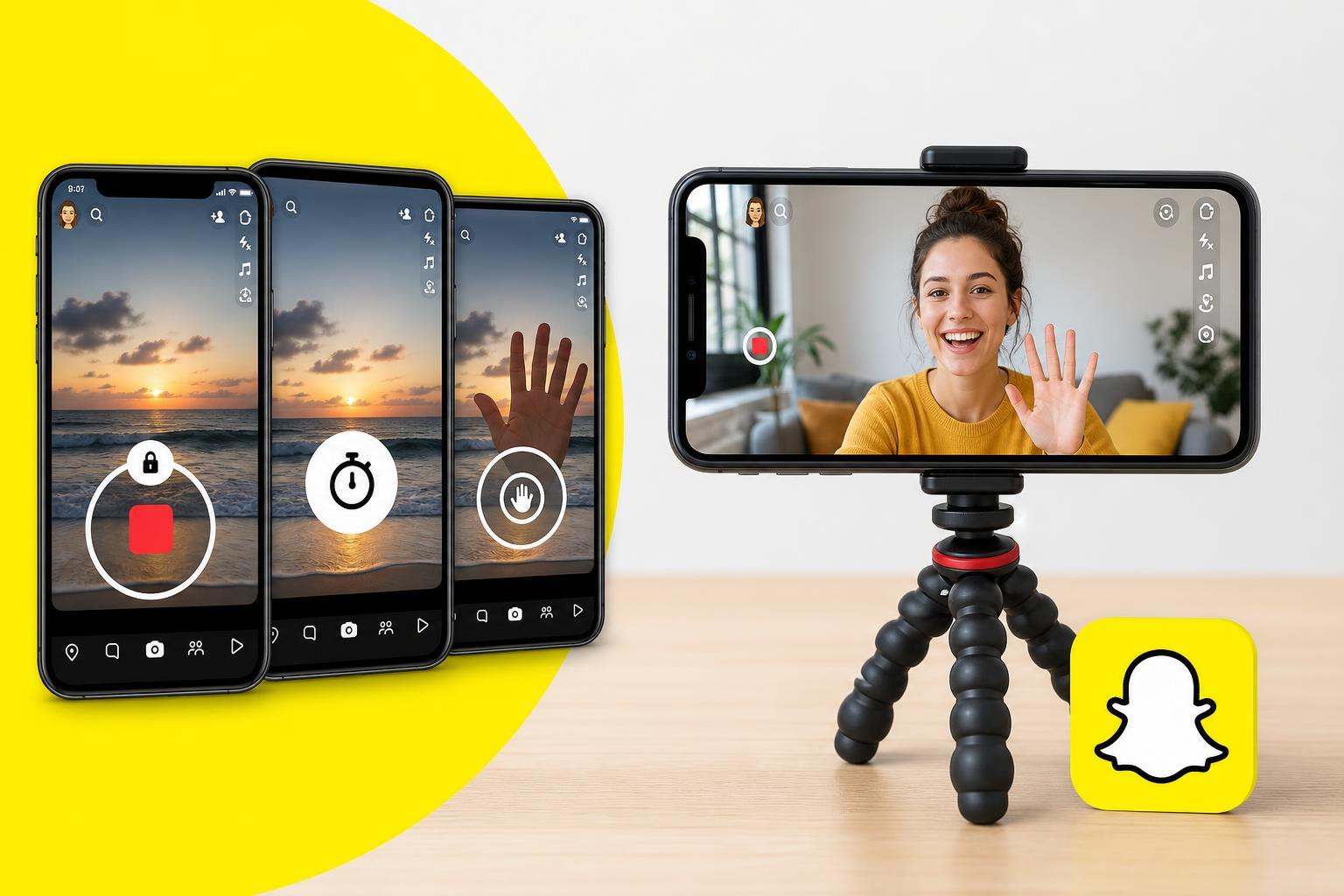
1. Use Snapchat’s Lock Recording Gesture
The quickest way to record without holding the button is to use Snapchat’s built-in lock gesture. This is the closest thing to a native hands-free recording mode, and it works well for regular snaps and many short videos.
- Open Snapchat and switch to the camera screen.
- Press and hold the capture button as if you were starting a normal video.
- Without lifting your finger, drag the button to the left toward the lock icon.
- When the lock appears, release your finger and keep recording.
- Tap the capture button again when you want to stop.
2. Use Your Phone’s Accessibility or Voice Control Features
If you want a more general hands-free method, your phone’s accessibility tools may help. Some Android phones and iPhones offer voice control, touch assistance, or switch-based input that can simulate taps or help you trigger recording more comfortably.
- Voice control can let you interact with the screen using spoken commands.
- Assistive touch-style menus can make it easier to press and hold on-screen controls.
- Some accessibility features allow custom gestures or shortcuts that reduce the need for repeated finger pressure.
This is not always the simplest option for a one-time snap, but it can be useful if you frequently record videos hands-free or have trouble holding down small on-screen buttons.
3. Start the Recording, Then Stabilize Your Phone
If the lock gesture is unavailable or unreliable, a practical workaround is to start the recording normally and then place the phone in a stable position while the video continues. This can be useful for tabletop shots, cooking clips, product demos, or any situation where the phone does not need to move much.
- Use a tripod, stand, or phone mount to keep the device steady.
- Start the video recording first, then set the phone down carefully if needed.
- Check framing before you begin so you do not need to adjust the phone once recording is active.
When the Lock Gesture Does Not Appear
If you do not see a lock icon when holding the Snapchat record button, the most likely causes are an app version issue, a temporary app glitch, or a difference in how your device handles the gesture. In that case, check whether Snapchat is updated and try the recording screen again.
- Make sure Snapchat is updated to the latest version.
- Close and reopen the app if the camera screen behaves oddly.
- Check whether your phone’s touch settings or accessibility settings are affecting gestures.
- Try the same action on the front and rear cameras to see if the behavior changes.
Which Method Should You Use?
For most people, the Snapchat lock gesture is the best first choice because it is built into the app and takes only a second to use. If that does not work well on your phone, accessibility tools or a stable phone mount are the next most practical options.
- Use the lock gesture for the fastest hands-free recording inside Snapchat.
- Use accessibility tools if you want a more flexible or repeatable solution.
- Use a stand or tripod if you mainly need the phone steady during longer clips.
If you want, I can also turn this into a device-specific guide for iPhone or Android, since the exact steps can vary a little between them.





