
Adding emojis to a picture on Android is a quick way to hide details, make a post more fun, or turn a plain photo into something more expressive. You can do it with built-in editing tools, your keyboard, or a third-party app depending on how much control you want.
The best method depends on what you need. If you only want a simple emoji overlay, Android’s built-in tools may be enough. If you want to move, resize, and layer multiple emojis, a photo editor app gives you more flexibility.
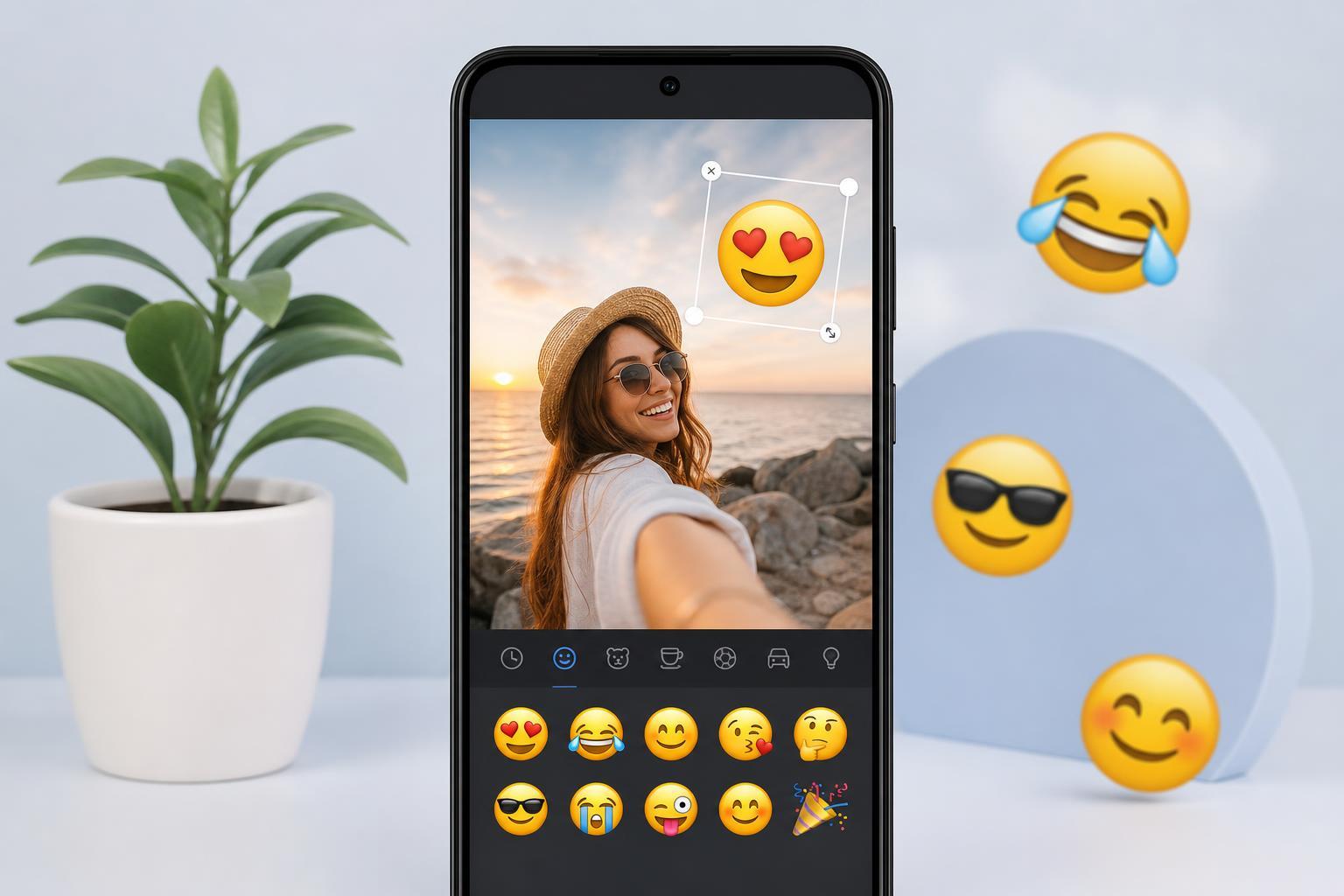
1. Use Your Phone’s Built-In Photo Editor
Many Android phones include a basic gallery editor that can add stickers, drawings, text, or emoji-like elements directly to a photo. This is usually the fastest option if your phone supports it.
- Open the photo in your Gallery, Photos, or Images app.
- Tap Edit or the pencil icon.
- Look for Stickers, Decorations, Emoji, or a similar tool.
- Choose an emoji and place it on the picture.
- Resize or rotate it if the editor allows it.
- Save a copy of the edited image.
2. Add Emojis Using a Keyboard Sticker or Clipboard Tool
Some Android keyboards and messaging apps let you copy an emoji and paste it into an image editor that supports text or sticker overlays. This method is less direct, but it can work well if your editor has a text layer or sticker layer.
- Open the emoji keyboard and choose the emoji you want.
- Copy it if your keyboard or app supports copying.
- Open a photo editor that supports text or stickers.
- Paste the emoji into a text field or add it as a sticker if available.
- Move it into position and adjust the size.
- Save the finished picture.
3. Use a Free Photo Editor App
If you want more control, a dedicated photo editor app is the most reliable option. These apps usually include sticker libraries, layering tools, filters, and easier resizing than basic gallery editors.
- Install a photo editor that supports stickers or layers.
- Open the app and load the picture you want to edit.
- Find the Stickers, Elements, or Emoji section.
- Select the emoji and place it on the image.
- Resize, rotate, or duplicate it as needed.
- Export or save the edited photo to your phone.
How to Choose the Best Method
- Use the built-in editor for fast, simple edits.
- Use the keyboard method if you already have an emoji available and your editor can paste or insert it.
- Use a photo editor app if you want more control over size, placement, and multiple emojis.
If you are editing a social media post, a built-in editor is often enough. If you are creating a meme, hiding personal information, or making a more polished image, a dedicated app will usually save time in the long run.
Helpful Tips for Better Results
- Choose a large enough emoji so it remains clear after saving or uploading.
- Place the emoji carefully if it needs to cover sensitive details.
- Use a contrasting emoji color if the app lets you change style or outline.
- Save a copy before editing if you may want the original photo later.
- Check the final image at full size before sharing it.
What to Do If You Cannot Add Emojis
If you do not see an emoji or sticker option, your current editor may only support cropping and filters. In that case, install a photo editor that specifically mentions stickers, overlays, or text tools. That will usually solve the problem right away.
For most Android users, the easiest path is to start with the built-in editor and move to a free app only if you need more control. That gives you the fastest result without adding unnecessary complexity.





