
If YouTube Shorts open but won’t load, stay black, freeze, or refuse to play on your Android phone or iPhone, the cause is usually a problem with the app, your network connection, or a device setting that is interfering with playback.
The good news is that most Shorts playback problems can be fixed without resetting your phone or reinstalling everything. Start with the simplest checks below and move to the next fix only if the problem continues.
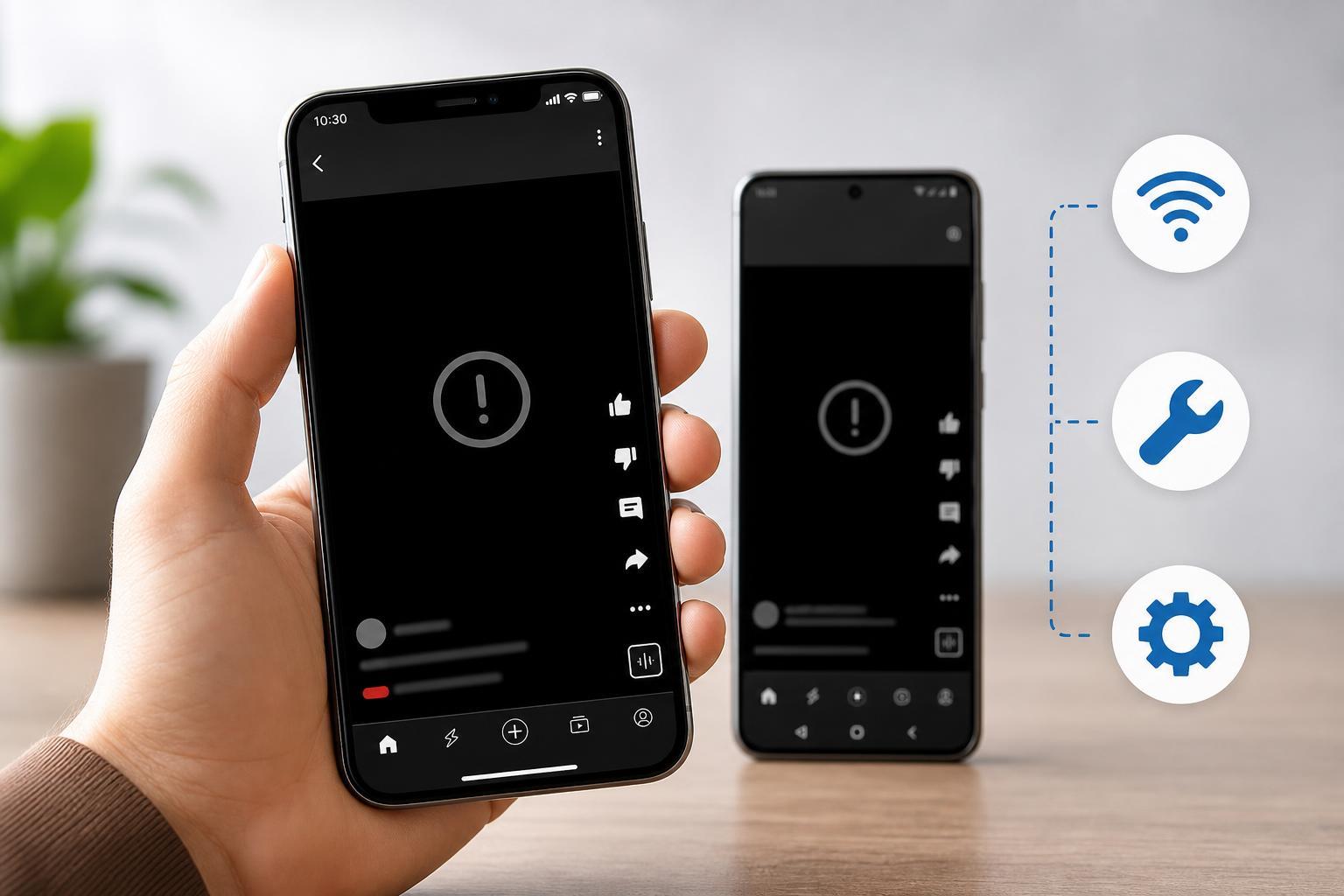
1. Check the YouTube app and clear temporary app issues
A corrupted app cache, an outdated YouTube app, or a temporary glitch in the app can stop Shorts from loading correctly. This is often the first thing to check because it affects only YouTube, not the rest of your phone.
- Close YouTube completely and open it again.
- On Android, update YouTube from the Google Play Store.
- On iPhone, update YouTube from the App Store.
- If Shorts still will not play, clear the YouTube app cache on Android.
- If you are using an iPhone, offload or delete and reinstall the YouTube app if the problem continues.
On Android, clearing the cache is usually the safer first step because it removes temporary files without fully resetting the app. On iPhone, there is no separate app cache control in the same way, so updating or reinstalling YouTube is often the closest equivalent when app files seem to be causing trouble.
2. Rule out a connection problem
Shorts are lightweight videos, but they still need a stable connection. A weak Wi‑Fi signal, a mobile data issue, or a network filter such as a VPN or private DNS service can stop them from loading or make them buffer endlessly.
- Try switching between Wi‑Fi and mobile data to see whether Shorts load on one connection but not the other.
- Open another app or website to confirm that your internet connection is working normally.
- Turn off any VPN, ad blocker, or private DNS setting temporarily and test Shorts again.
- If you are on Wi‑Fi, move closer to the router or reconnect to the network.
- If mobile data is the problem, check that YouTube has permission to use cellular data and that low-data or data saver settings are not limiting playback.
3. Check phone settings that can interfere with playback
Some Android and iPhone settings can block or slow video playback even when the app and internet connection seem fine. Battery saving modes, background restrictions, date and time errors, and content restrictions can all affect how YouTube behaves.
- Turn off Battery Saver, Low Power Mode, or similar power-saving features temporarily.
- Make sure date and time are set automatically on your phone.
- Check whether Screen Time, parental controls, or digital wellbeing restrictions are limiting YouTube.
- On Android, confirm that YouTube is allowed to use background data if needed.
- If you use accessibility or display filters, disable them briefly to see whether they are affecting video rendering.
An incorrect date or time setting can interfere with secure connections and cause apps to misbehave in ways that are not obvious. Power-saving features can also limit app activity enough to make Shorts load slowly or stop altogether.
If Shorts still will not play
If you have tried the three fixes above and Shorts still refuse to play, the problem may be with YouTube’s service itself, your account, or a deeper app conflict on the phone. At that point, these additional checks are worth trying:
- Sign out of YouTube and sign back in.
- Try a different Google account if you have one.
- Check whether other users are reporting a YouTube outage.
- Restart the phone only after the app, network, and settings checks above have been completed.
- On Android, remove and reinstall YouTube updates if the app came preinstalled and the issue started after an update.
Which fix should you try first?
If you want the fastest path, try these in order: update the YouTube app, switch networks, and then check power-saving or restriction settings. In most cases, one of those three steps resolves YouTube Shorts playback problems on Android and iPhone without needing more advanced troubleshooting.





