
If your Android phone suddenly refuses to take screenshots, the cause is usually something simple: a blocked app permission, a button-combination issue, or a system setting that is interfering with screen capture. In some cases, the problem is limited to one app, while in others the phone cannot save screenshots at all.
This guide covers three practical fixes that solve most screenshot problems on Android, plus a few clues to help you figure out whether the issue is with the phone, the app you are using, or the storage on your device.
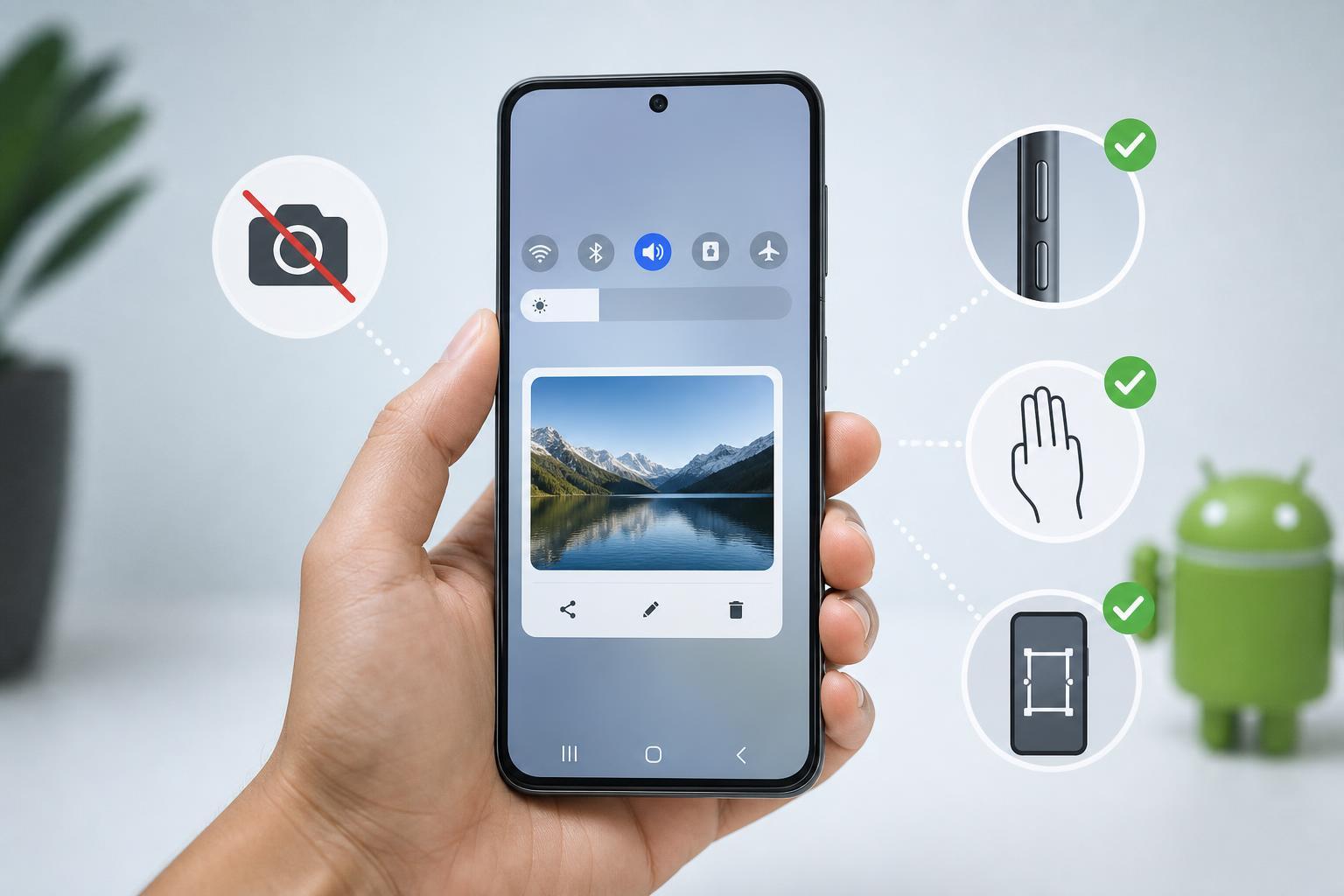
1. Check Whether the App Is Blocking Screenshots
Some apps prevent screenshots on purpose, especially banking apps, streaming services, private chats, and apps that handle sensitive information. If screenshots fail only inside one app, the app itself may be the reason.
- Try taking a screenshot on your home screen or in another app, such as Settings or your browser.
- If screenshots work elsewhere, the issue is specific to the app you were using.
- Look for the app’s own screenshot or screen-recording restrictions in its settings or help pages.
- If the app is a banking, payment, or secure messaging app, the block may be intentional and not something you can disable.
2. Make Sure You Are Using the Correct Screenshot Method
On most Android phones, the standard screenshot method is pressing Power + Volume Down at the same time. If that does not work, the buttons may not be being pressed together long enough, or your phone may use a different shortcut.
- Press Power and Volume Down together for a moment, then release both buttons.
- If your phone has on-screen screenshot controls in the quick settings panel, try that method instead.
- Check whether gesture-based screenshot features are enabled in your phone’s settings.
- If a case or stuck button is making one of the hardware keys hard to press, remove the case and try again.
3. Free Up Storage and Check for System Problems
Android needs available storage space to save screenshots. If your storage is almost full, the screenshot may fail silently or the image may not appear in your gallery.
- Open Settings and check your available storage.
- Delete unneeded files, large videos, or old downloads if storage is nearly full.
- Check your gallery or Photos app for the screenshot in the Screenshots album.
- If the phone still will not save screenshots, test whether the problem affects other file-saving actions, such as downloading an image or recording a video.
Other Things to Check if the Problem Continues
- Restart the phone only if the issue seems temporary or started after an update, app install, or settings change.
- Check for system updates in case the problem is caused by a known bug.
- Test in Safe Mode if you suspect a third-party app is interfering with screenshots.
- If the volume or power button is physically damaged, the hardware may need repair.
How to Tell Which Fix Is Most Likely
- Only one app fails: the app is probably blocking screenshots.
- No screenshot works anywhere: check the button method, storage space, or hardware buttons.
- The screenshot flashes but never saves: look at storage, gallery permissions, or file-saving issues.
- Screenshots worked before but stopped after an update: a temporary software bug may be involved.
When to Get Help
If screenshots fail everywhere, storage is fine, and the buttons do not respond reliably, the problem may be hardware-related or tied to a deeper system issue. In that case, contact the phone manufacturer, your carrier, or a repair shop if the buttons are damaged.





