
When screen mirroring stops working on Android, the cause is usually one of a few common issues: the devices cannot see each other, permissions or settings are blocking the connection, or the mirroring app or receiver is not compatible. The good news is that you can usually narrow it down quickly without changing a lot of settings.
This guide focuses on three fixes that solve most Android screen mirroring problems, whether you are casting to a TV, streaming device, or another phone or tablet.
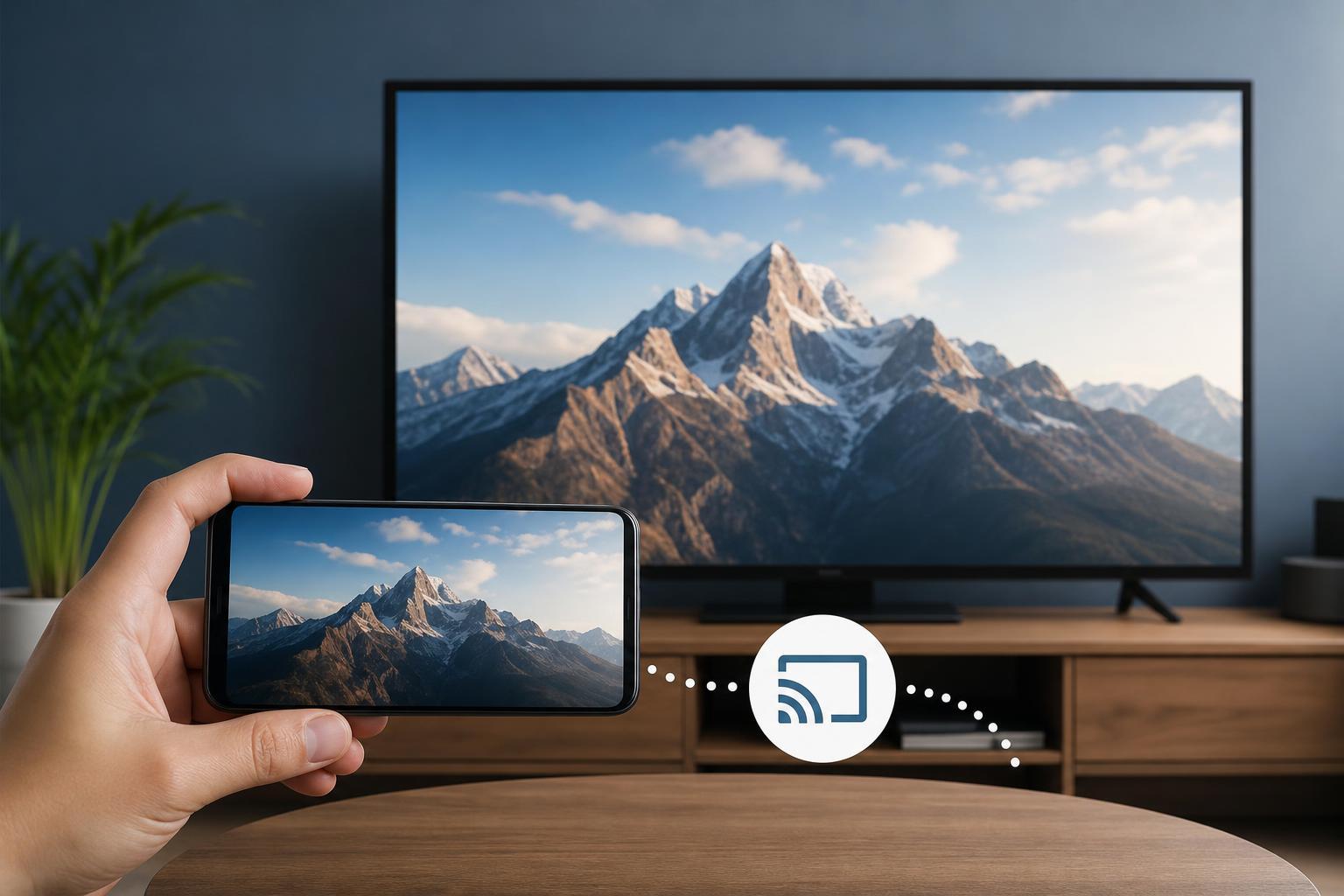
1. Check the connection and make sure both devices can discover each other
The first thing to verify is the connection path itself. Screen mirroring depends on both devices being on the same network or within the same wireless casting system. If the phone cannot detect the TV or receiver, the problem is often network-related rather than a broken app.
- Make sure your Android phone and the receiving device are connected to the same Wi-Fi network.
- If the TV or streaming device has both 2.4 GHz and 5 GHz network options, confirm they are on the same band or the same router network.
- Turn Wi-Fi off and back on on the Android device, then re-check the available devices list.
- If you are using Bluetooth only to start the cast connection, remember that actual screen mirroring usually still relies on Wi-Fi or Wi-Fi Direct.
- Move the phone and receiving device closer together if the signal is weak or the device list is slow to refresh.
2. Check permissions, compatibility, and display settings
If the devices can see each other but the screen still will not mirror, the next likely issue is a setting or compatibility problem. Some Android phones block casting features until the right permission, display mode, or device support is in place.
- Confirm that screen mirroring, Smart View, Cast, or a similar feature is enabled on the Android device.
- Allow any requested permissions for location, nearby devices, or network access, since some casting features need them to scan for receivers.
- Check whether your TV, adapter, or streaming device supports the specific casting method your phone is using.
- If the app offers a choice between mirroring the whole screen and casting only media, pick the correct one for your goal.
- Disable battery saver or power-saving mode if it is limiting wireless background activity.
- On some phones, turn off Do Not Disturb or any display restrictions that may interfere with pop-up prompts.
3. Restart the mirroring app, update software, or reset the connection
If the connection and permissions look correct, the issue may be with the app, firmware, or a stuck pairing session. Mirroring tools can fail after an update, a network change, or a bad cached connection.
- Close the mirroring app or casting menu on both devices and open it again.
- Forget the receiver from the Android casting list, then search for it again.
- Update the Android system software, the mirroring app, and the TV or receiver firmware if updates are available.
- If you are using a third-party mirroring app, clear its cache or reinstall it if the app keeps failing to connect.
- Try another receiver or another Android device to determine whether the problem follows the phone, the app, or the display device.
How to narrow down the real cause faster
A quick test can tell you whether you are dealing with a phone issue, a receiver issue, or a network issue. Try screen mirroring from a different Android phone if possible. If that works, the receiving device is probably fine and your original phone needs closer attention. If no phone can connect, focus on the TV, adapter, or Wi-Fi network.
- Only one phone fails: check that phone’s permissions, app settings, and software updates.
- All phones fail: check the TV, adapter, firmware, and Wi-Fi network.
- Casting connects but shows a black screen: look for app restrictions, battery optimization, or unsupported protected content.
- The device appears and disappears: look for unstable Wi-Fi, router band conflicts, or interference.
When screen mirroring still will not work
If none of the three fixes solve the issue, the receiver may not support the type of mirroring your Android device is trying to use. In that case, the easiest path is often to switch methods rather than keep forcing the same one. You might use the TV’s built-in cast app, a compatible HDMI dongle, or the media-casting option instead of full-device mirroring.





