
If your Samsung Galaxy phone is plugged in but not charging, the cause is often something simple such as a faulty cable, debris in the charging port, or a software glitch. In some cases, the problem can also point to battery wear or damaged hardware.
This guide focuses on three useful fixes that solve many Samsung Galaxy charging problems without wasting time on unnecessary steps.
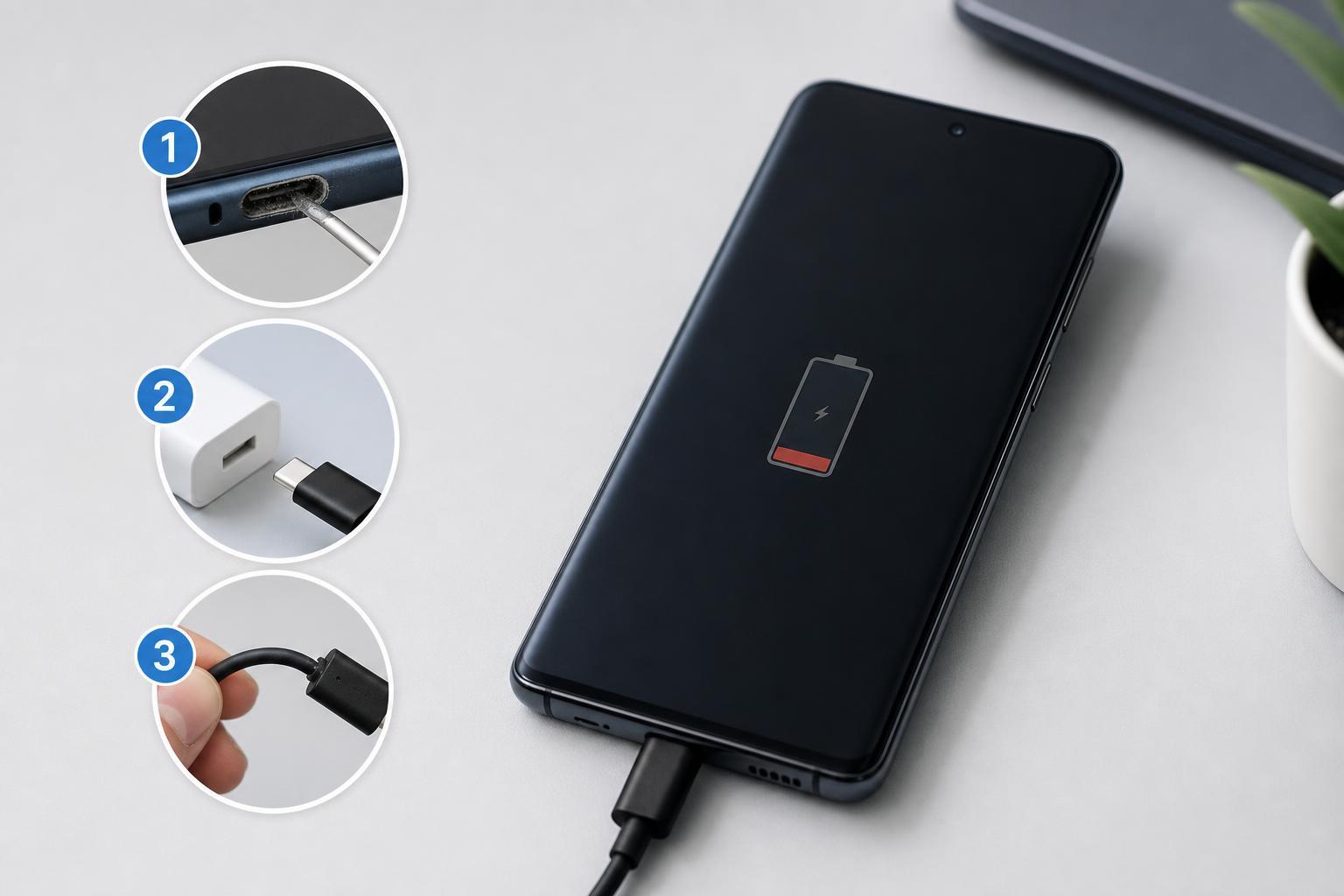
1. Check the Charger, Cable, and Power Source
The first thing to rule out is a bad charging setup. A phone may appear broken when the real issue is the USB cable, wall adapter, power strip, or even the USB port on a computer.
- Try a different USB cable if you have one available. Cables often fail internally even when they still look normal on the outside.
- Use a different wall charger or power adapter that is known to work with another device.
- Plug the charger directly into a wall outlet instead of a USB port on a PC, monitor, or dock.
- Check whether the charging icon appears when you connect the phone. If there is no icon at all, the issue is often with the cable, adapter, or port rather than the battery.
2. Clean the USB-C Charging Port Carefully
Lint, dust, and pocket debris can build up inside the USB-C port and stop the cable from making a solid connection. Even a small amount of debris can prevent charging or make the connection intermittent.
- Turn the phone off before cleaning the port.
- Use a bright light to look inside the charging port.
- Gently remove debris with a wooden or plastic toothpick, or use a soft, dry brush.
- Avoid metal tools, pins, or anything sharp that could damage the port contacts.
- After cleaning, reconnect the cable firmly and check whether charging starts normally.
3. Check for Software and Battery-Related Problems
If the charger and port are fine, the phone may still refuse to charge because of a software issue, overheating, or battery protection behavior. Samsung devices can reduce or stop charging when they get too hot or detect an abnormal condition.
- Let the phone cool down if it feels warm or shows a temperature warning.
- Disconnect any accessories and try charging with the phone unlocked and idle for a few minutes.
- Check whether the phone charges after a restart if the battery is not fully dead.
- Open Settings and look for battery or device care options that may show charging status or battery health warnings.
- If the phone only charges very slowly or stops at certain percentages, try a different charger that supports the correct charging standard for your model.
If the phone still will not charge after these checks, the battery may be worn out or the charging port itself may be damaged. In that case, a repair shop or Samsung service center may need to inspect the device.
When the Problem Is Probably Hardware
If your Galaxy phone does not charge with multiple known-good cables and chargers, and the port is clean, the problem is more likely hardware-related. Common signs include a loose charging plug, charging that cuts in and out when you move the cable, or no response at all even when connected to different chargers.
- The cable feels loose in the port
- Charging only works at an angle
- The phone gets no charging icon from any charger
- There is visible damage inside the port
- The phone has recently been exposed to moisture or heavy impact
What to Try First
If you want the fastest path, start with a different cable and charger, then clean the charging port, and then check for overheating or software-related behavior. Those three steps solve many Samsung Galaxy charging issues without any advanced troubleshooting.





