
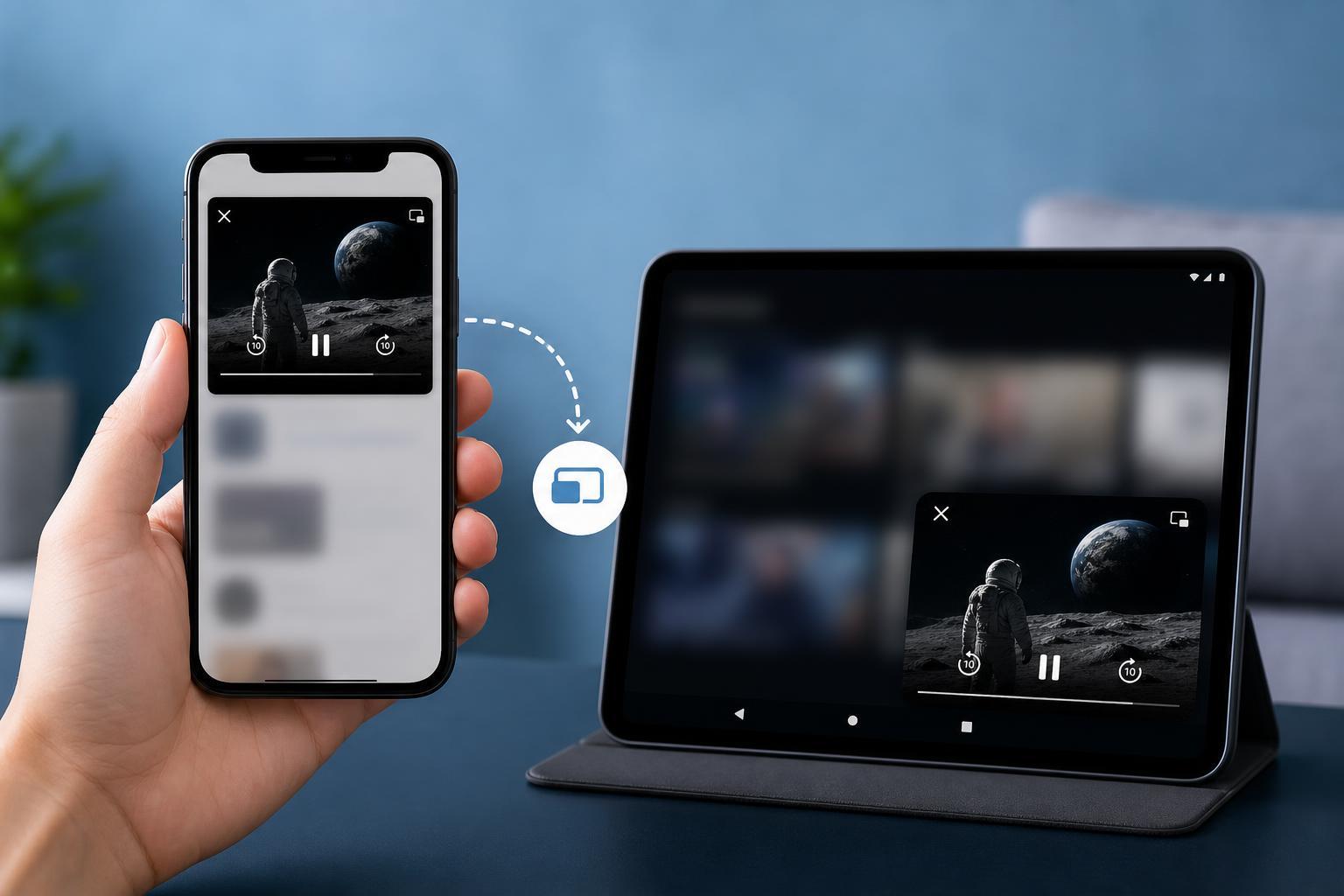
Picture-in-picture lets you keep watching Prime Video in a small floating window while using other apps. When it stops working on Android or iPhone, the cause is usually a setting, permission, or device limitation rather than a major app failure.
Here are three effective ways to troubleshoot Prime Video picture-in-picture on mobile devices, starting with the most common fixes.
1. Check That Picture-in-Picture Is Enabled on Your Device
Prime Video can only use picture-in-picture if your phone or tablet allows it. On both Android and iPhone, the feature may be disabled for the app or turned off at the system level.
- On Android, open Settings and go to Apps, then find Prime Video.
- Tap Picture-in-picture or Special app access, depending on your device.
- Make sure Prime Video is allowed to use picture-in-picture.
- On iPhone, open Settings, then tap General.
- Select Picture in Picture and make sure the setting is enabled.
- If your device has an app-specific permission for Prime Video, confirm that it is allowed to overlay or run in picture-in-picture mode.
If picture-in-picture is disabled at the system level, Prime Video will usually play normally until you leave the app, then the floating window never appears.
2. Make Sure You’re Using the Right Playback Conditions
Prime Video does not always allow picture-in-picture for every type of content or in every playback situation. Some titles, playback states, or account conditions may prevent the floating window from appearing.
- Try a different show or movie to see whether the issue is specific to one title.
- Check whether ads, trailers, or certain protected content behave differently from regular playback.
- Start playback first, then press the Home gesture or Home button to trigger picture-in-picture.
- Avoid switching to picture-in-picture from screens where playback has not fully started yet.
- If you are casting to another device, stop casting before testing picture-in-picture on the phone itself.
3. Update or Reinstall Prime Video
If the setting is enabled and playback conditions look normal, the Prime Video app itself may be outdated or glitching. Updating the app often restores picture-in-picture support after a bug or compatibility issue.
- Open the App Store on iPhone or the Google Play Store on Android.
- Search for Prime Video and install any available update.
- If the app is already current, force close it and open it again.
- If the problem continues, delete Prime Video and reinstall it from the official app store.
- Sign back in and test picture-in-picture again with a video that is already playing.
If It Still Won’t Work
If none of the three fixes solve it, the most likely remaining causes are an unsupported device, an OS version that is too old, or a temporary Prime Video service issue. In that case, check whether picture-in-picture works in another video app on the same phone. If it does, the problem is specific to Prime Video. If it does not, the issue is probably with the device or operating system.
- Update Android or iOS if a system update is available.
- Check whether other video apps support picture-in-picture on your device.
- Try Prime Video on another phone or tablet to compare behavior.
- Look for Amazon app outages or known playback issues if the feature suddenly stopped working everywhere.





