
Netflix Picture-in-Picture (PiP) lets you keep watching while using other apps, but on Android it does not always work the way it should. Sometimes the PiP button never appears, the video closes when you leave the app, or the feature works for other apps but not Netflix.
If Netflix PiP is not working on your Android phone or tablet, the cause is usually a setting, app permission, or account/device limitation. These three fixes cover the most common reasons and are worth trying first.
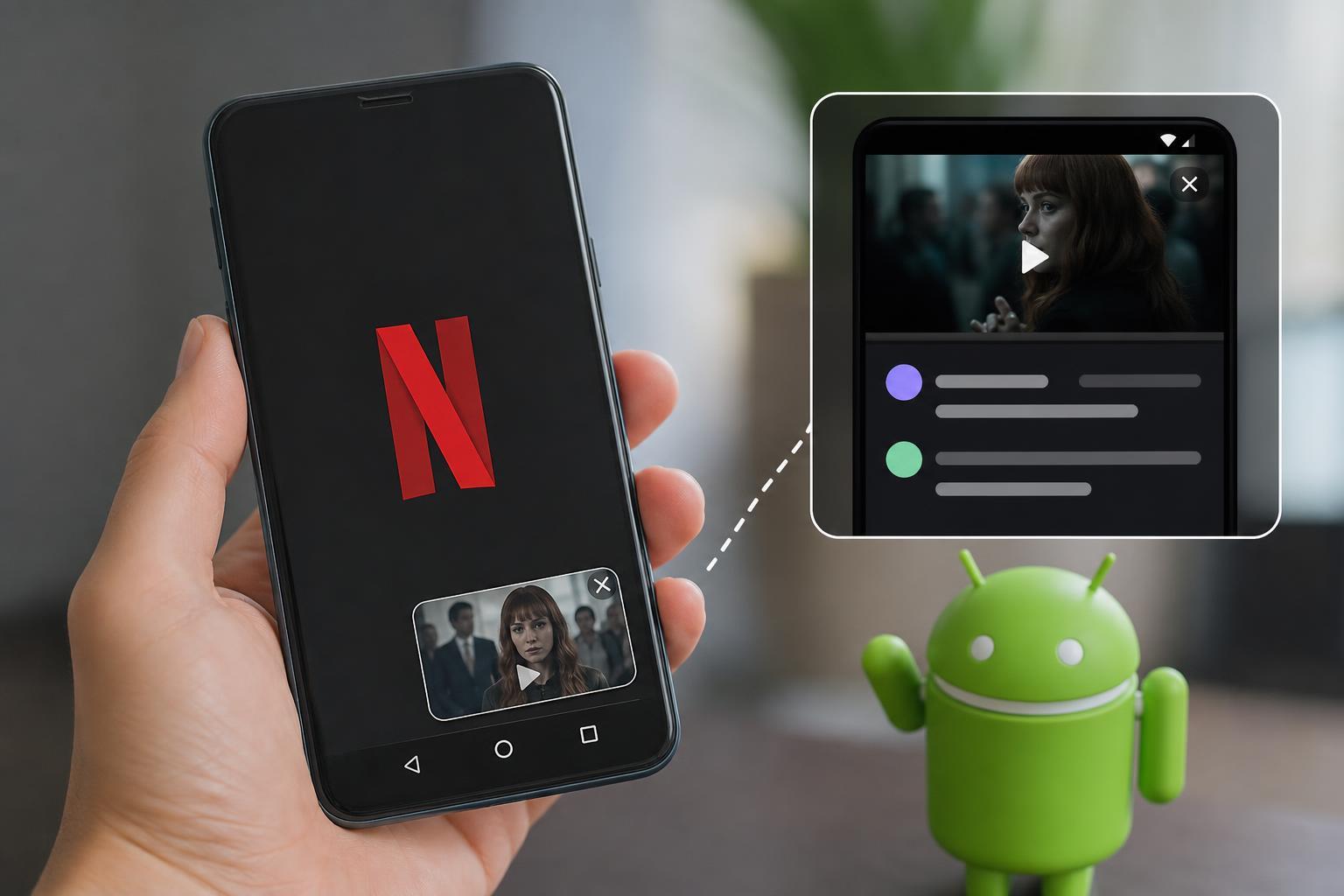
1. Make Sure Picture-in-Picture Is Enabled for Netflix and Android
Android needs Picture-in-Picture enabled at the system level, and Netflix also needs permission to use it. If either setting is off, the feature will not work even if the app itself is fine.
- Open Android Settings.
- Go to Apps or Apps & notifications, then open Netflix.
- Tap Picture-in-Picture and make sure it is allowed.
- If you do not see a Netflix-specific PiP option, open Settings > Apps > Special app access > Picture-in-picture and confirm Netflix is allowed there.
- Also check system-wide PiP settings if your phone includes them, since some Android skins place the control in a different menu.
2. Update Netflix and Android, Then Clear Netflix’s Cache
An outdated Netflix app or Android system version can break PiP behavior. Corrupted cached data can also prevent the app from switching into floating playback correctly.
- Open the Google Play Store and check for a Netflix update.
- Install any available Android system update from Settings > System > Software update, or the equivalent menu on your device.
- Go to Settings > Apps > Netflix > Storage and cache.
- Tap Clear cache first.
- Reopen Netflix and test PiP again. If it still fails, you can also try Clear storage or Clear data, but this will sign you out and remove app settings.
3. Check Whether Your Device, Playback Mode, or Content Is Blocking PiP
Not every Netflix playback situation behaves the same way. Some device models, Android versions, and account states can affect whether PiP appears. Certain playback conditions may also stop it from launching.
- Try a different title to see whether the issue is specific to one video.
- Test with Wi-Fi and mobile data to rule out a temporary streaming hiccup.
- Make sure you are playing the video first; PiP usually appears only during active playback, not on the title screen.
- If you are using an older Android phone or a heavily customized system interface, PiP may be limited or less reliable.
- Close any app overlays or screen-recording tools that might interfere with video playback.
What to Try If It Still Won’t Work
If the three fixes above do not solve the issue, the problem may be tied to your specific device, a temporary Netflix app bug, or a system-level restriction from your phone manufacturer. At that point, the most useful next step is to test PiP in another supported app and compare the result. If PiP fails everywhere, the issue is likely with Android settings or the device itself. If it works everywhere except Netflix, the app may need a reinstall or you may be dealing with a temporary Netflix-side bug.





