
If Instagram opens but new posts refuse to load, the problem is usually caused by a weak connection, a temporary app issue, or a glitch in the app’s cached data. The good news is that you can often fix it without needing advanced troubleshooting.
This guide covers three reliable ways to get Instagram loading posts normally again on both Android and iPhone.
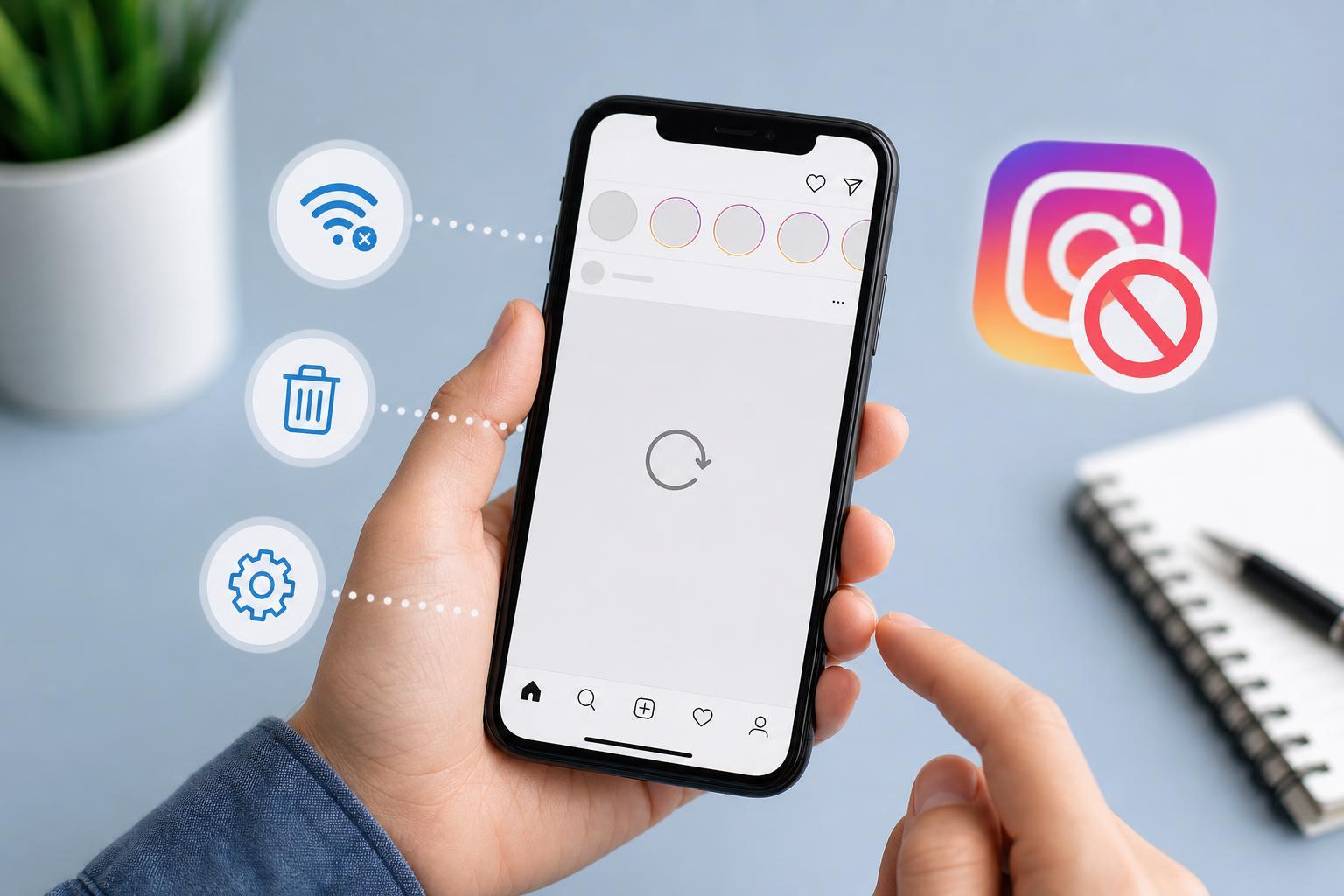
1. Check Your Internet Connection First
Instagram needs a stable connection to load new content. If your feed is stuck, the app may still open, but posts, reels, and stories may fail to refresh.
- Switch between Wi-Fi and mobile data to see whether one connection works better.
- Open another app or website to confirm whether the internet is working normally.
- If you are on Wi-Fi, move closer to the router or reconnect to the network.
- If you are on mobile data, make sure Instagram is allowed to use cellular data in your phone’s settings.
2. Clear Instagram’s Cache or Reinstall the App
If your connection is fine, the next most likely cause is a problem inside the app itself. Corrupted cache files or a buggy app install can stop new posts from loading properly.
- On Android, open Settings, go to Apps, choose Instagram, then clear the cache.
- If clearing the cache does not help, clear the app’s storage or data only if you are comfortable signing in again afterward.
- On iPhone, uninstall Instagram and reinstall it from the App Store, since iOS does not offer a separate cache-clearing option for most apps.
- After reinstalling, sign back in and check whether the feed refreshes normally.
3. Check for Instagram or Account-Side Issues
Sometimes the app and your phone are both working fine, but Instagram itself is having a temporary outage or your account is seeing a loading problem tied to the app session.
- Check whether other people are reporting Instagram problems in your area or on other devices.
- Log out of Instagram and sign back in to refresh your account session.
- Update Instagram from the App Store or Google Play Store if an update is available.
- Make sure your phone’s date and time are set automatically, since incorrect time settings can sometimes cause app connection problems.
How to Narrow Down the Cause Quickly
If you want to save time, use this order of checks:
- Try switching networks first.
- If that does not help, clear the app cache or reinstall Instagram.
- Then check for app updates, account sign-in issues, or a temporary service outage.
When You May Need to Wait
If Instagram is down for a wider service issue, none of the fixes on your phone will work immediately. In that case, the best option is usually to wait for the service to recover and try again later.





