
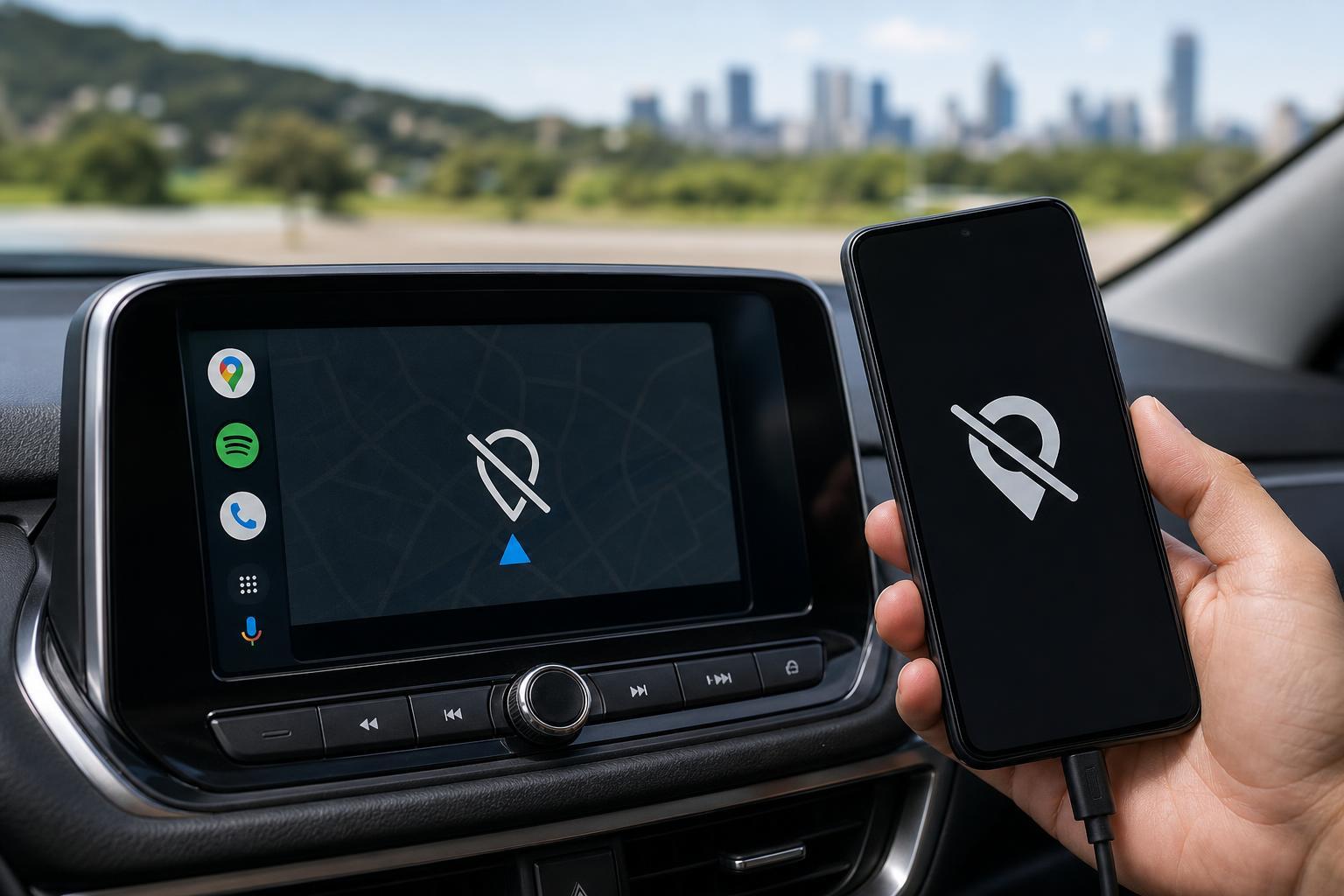
If Android Auto keeps showing a GPS signal lost message, the problem is usually caused by location permissions, power-saving settings, a bad cable connection, or a temporary glitch in the phone or car head unit. The good news is that you can usually narrow it down quickly and fix it without replacing any hardware.
This guide focuses on the three most effective fixes first, then covers a few checks that help confirm whether the issue is coming from your phone, Android Auto, or the car’s display system.
1. Check Android Auto and Google Maps Location Permissions
Android Auto and Google Maps both need location access to provide accurate navigation. If permissions were changed, restricted, or set to only work in limited situations, Android Auto may lose GPS information even though your phone still appears to have signal.
- Open Settings on your Android phone.
- Go to Apps and find Android Auto.
- Tap Permissions and make sure Location is allowed.
- Repeat the same check for Google Maps or any other navigation app you use in Android Auto.
- If available, set location access to allow while using the app and make sure precise location is enabled.
2. Turn Off Battery Optimization and Power Saving for Navigation Apps
Aggressive battery saving can interrupt background GPS use. That may not matter when the phone is idle, but it can cause navigation to drop out once Android Auto is running for a while.
- Open Settings on your phone.
- Look for Battery, Power saving, or Battery optimization.
- Find Android Auto, Google Maps, and any navigation app you use.
- Set them to Unrestricted, Not optimized, or the equivalent option on your phone.
- If your phone has an adaptive battery feature, check whether it is limiting these apps.
3. Test the USB Cable, Connection Mode, and Android Auto Link
A poor USB connection can make Android Auto behave unpredictably, including dropping map data or causing the navigation app to appear frozen. Even if music and calls still work, a flaky data connection can interfere with location updates.
- Use a different USB cable that supports data, not just charging.
- Plug directly into the car’s main USB port if possible.
- Avoid USB hubs, adapters, and extension cables while testing.
- If your car supports wireless Android Auto, temporarily test with a wired connection or reconnect the wireless pairing.
- Check whether the USB port is clean and the cable fits snugly at both ends.
If the problem only happens with one cable, one port, or one connection mode, you have likely found the cause.
Other Useful Checks If GPS Still Drops Out
If the three main fixes do not solve the problem, these checks can help you rule out other common causes.
- Make sure Location is turned on in Android system settings.
- Update Android Auto, Google Maps, and Google Play services.
- Check for Android system updates on your phone.
- Clear the cache for Android Auto and Google Maps if the problem started after an update.
- Remove and re-add the phone in Android Auto if the connection seems corrupted.
- Test GPS in the phone itself, outside Android Auto, to see whether the issue is car-specific.
How to Tell Whether the Problem Is the Phone or the Car
A quick way to narrow down the source is to compare behavior outside the vehicle. If Google Maps loses GPS on the phone by itself, the issue is more likely with the phone’s settings, software, or hardware. If GPS works normally on the phone but fails only in Android Auto, the cable, pairing, or car head unit is more likely to blame.
- Phone-only GPS problem: check permissions, power saving, app updates, and the phone’s location setting.
- Android Auto-only problem: test another cable, another USB port, or wireless setup.
- Car-wide navigation problem: the head unit may need a software update or a reset from the vehicle menu.
When to Get the Phone or Head Unit Checked
If Android Auto still reports GPS signal lost after permissions, power settings, and connection checks, there may be a deeper software conflict or a hardware issue with the phone’s location receiver or the car’s infotainment system.
- The problem happens in multiple apps, not just Android Auto.
- GPS drops even when the phone is outdoors with a clear view of the sky.
- The issue started immediately after a phone or car software update.
- The car’s display freezes, disconnects, or repeatedly reboots during Android Auto use.
Which Fix Should You Try First?
Start with location permissions, then battery optimization, then the cable or connection method. Those three fixes resolve many Android Auto GPS signal lost problems because they cover the most common causes: blocked location access, background app restrictions, and unreliable data transfer.
If none of those help, compare GPS behavior on the phone alone and inside the car. That will usually show whether the issue belongs to the phone, Android Auto, or the vehicle system.





