
If Gmail alerts are appearing but the sound is missing, the problem is usually caused by a notification setting, a silent mode issue, or a Gmail app configuration problem. Because Android and iPhone handle notifications differently, the exact fix depends on where the sound is being blocked.
This guide covers three fixes that solve the most common Gmail notification sound problems on both Android and iPhone, starting with the settings most likely to be wrong.
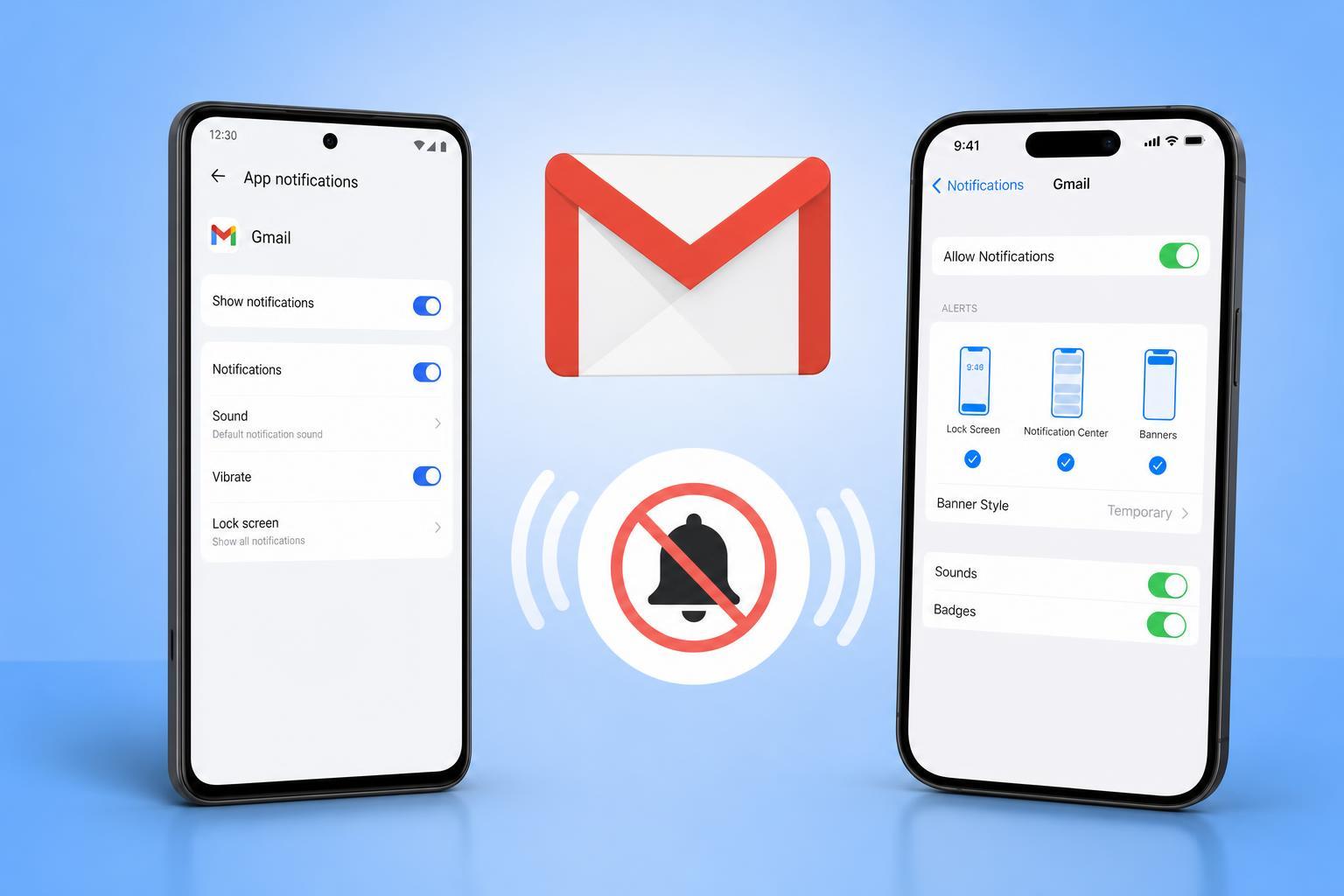
1. Check Gmail’s Notification Settings
The first place to look is inside the Gmail app itself. If Gmail is set to notify only for high-priority messages, or if notifications are disabled for a specific account, you may still see alerts without hearing a sound.
- Open the Gmail app.
- Tap the menu icon and go to Settings.
- Select the email account that is not making a sound.
- Tap Notifications and choose All, not only High priority notifications or None.
- If your phone supports it, open the system notification settings for Gmail and make sure notification sound is enabled for the app.
On Android, Gmail can also have notification categories controlled by the operating system. If the Gmail app looks correct but still stays silent, open your phone’s app notification settings and make sure the inbox and account notification channels are not muted.
On iPhone, make sure Gmail is allowed to send sounds in the phone’s notification settings, not just badges or banners.
2. Turn Off Do Not Disturb, Silent Mode, or Focus Features
If notifications appear but no sound plays, your phone may be muting alerts at the system level. This is very common on both Android and iPhone, especially when Do Not Disturb, Focus mode, or Silent mode is enabled.
- Check whether your phone is in Silent mode or vibrate-only mode.
- On Android, open Quick Settings and make sure Do Not Disturb is off.
- On iPhone, check the ring/silent switch on the side of the phone.
- On iPhone, open Control Center and make sure a Focus mode is not active.
- Go to sound settings and confirm the ringtone or notification volume is turned up enough to hear.
If your phone is connected to Bluetooth headphones, earbuds, or a car system, notification sounds may be routed there instead of the phone speaker. Disconnect Bluetooth temporarily to test whether Gmail sounds return.
3. Confirm the Right Account, Sync, and App Permissions
If you use more than one Gmail account, the sound problem may affect only one account. Gmail settings are often account-specific, so the account you checked may not be the one missing alerts.
- Open Gmail Settings and select each account one by one.
- Make sure notifications are enabled for the account you actually use most often.
- Check that Gmail has permission to send notifications on your phone.
- On Android, confirm battery optimization is not restricting Gmail in the background.
- On iPhone, make sure Background App Refresh is allowed for Gmail if you rely on timely delivery.
A sync problem can also make notifications seem broken. If Gmail is not syncing properly, new mail may not arrive as expected, which means no notification sound will trigger.
- Open the Gmail app and pull down to refresh your inbox.
- Check that the account is still signed in.
- If needed, remove and re-add the account only after trying the easier notification checks first.
- On Android, verify that Gmail sync is enabled in account settings.
What to Check If Gmail Is Still Silent
If none of the three fixes work, the issue is usually outside Gmail itself. Test whether other apps can make notification sounds. If they cannot, the phone’s sound settings, speaker, or system notifications are the more likely cause.
- Phone is in silent or vibrate mode
- Gmail notification channel is muted
- Notification permission is turned off
- Do Not Disturb or Focus mode is active
- Bluetooth audio is taking over the sound output
- Battery restrictions are limiting Gmail background activity
- The Gmail account is not syncing properly
Which Fix Should You Try First?
Start with Gmail’s own notification settings, then check your phone’s sound and Focus/Do Not Disturb controls, and finally confirm the correct account and sync behavior. In most cases, one of those three areas is causing the missing Gmail sound.





