
If reactions are not working in Google Messages, the issue is usually caused by RCS being turned off, an outdated app, or a chat that is not using a compatible messaging mode. The good news is that most reaction problems can be fixed quickly once you know where to check.
This guide focuses on three practical fixes that solve the most common reaction issues in Google Messages. It also explains when the problem is really a compatibility issue rather than a bug.
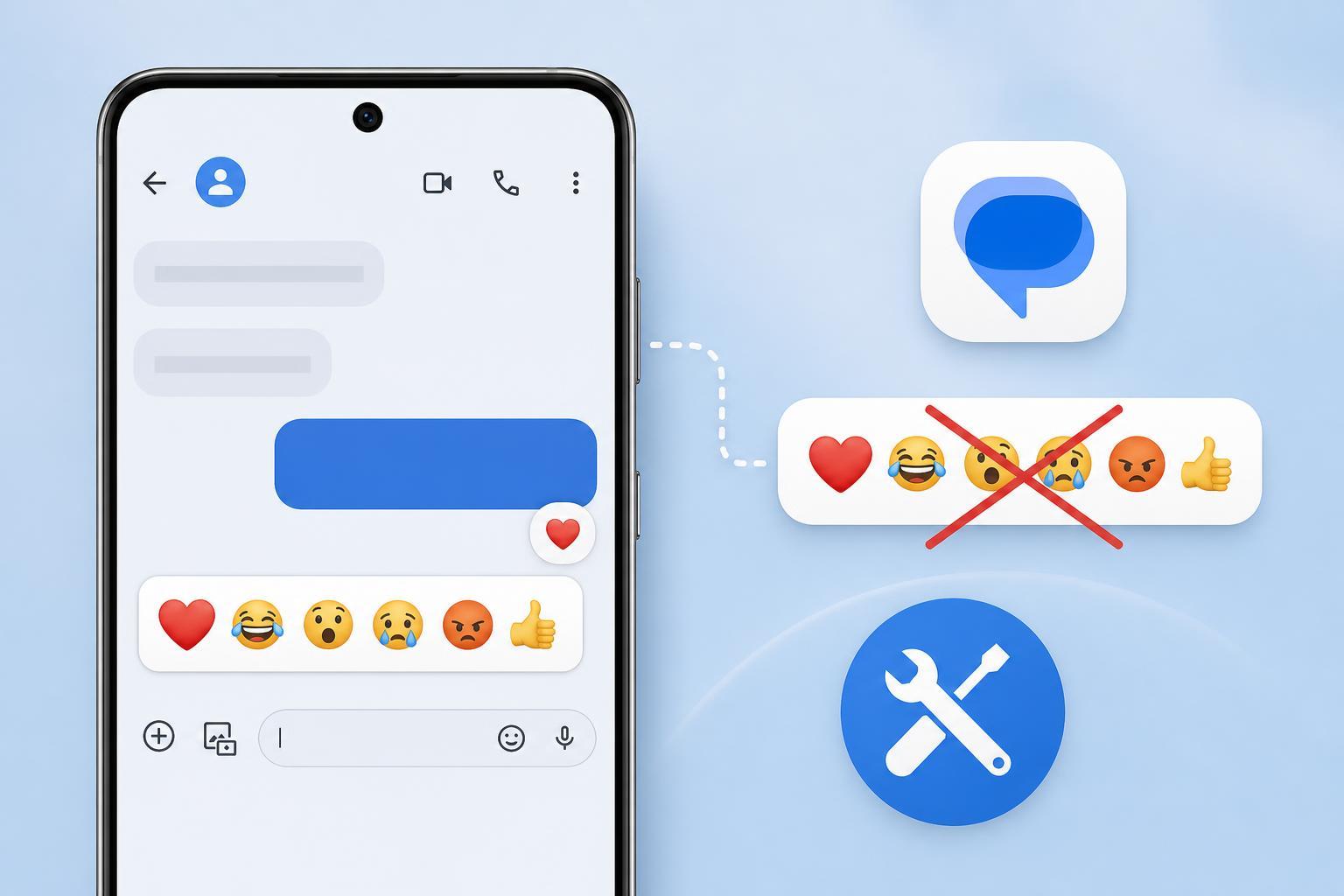
1. Make Sure RCS Chat Features Are Turned On
Google Messages reactions work best in RCS chats. If RCS is off, your messages may fall back to SMS or MMS, and reaction support can be limited or behave differently depending on the other person’s phone and app.
- Open Google Messages.
- Tap your profile picture or the menu icon.
- Go to Messages settings.
- Open RCS chats or Chat features.
- Turn the feature on if it is disabled.
- Wait for the app to show that chat features are connected before testing reactions again.
2. Update Google Messages and Google Play Services
If the app is outdated, reactions may not appear, may fail to send, or may only work for certain chats. Google Messages also depends on background services that need to stay current for chat features to function correctly.
- Open the Google Play Store.
- Search for Google Messages and install any available update.
- Search for Google Play Services and update it if available.
- After updating, reopen Google Messages and test reactions in an active chat.
3. Check Whether the Other Person’s App and Messaging Mode Support Reactions
Sometimes your phone is working correctly, but the other person’s device is not set up for the same messaging features. Reactions are most reliable when both people are using compatible messaging apps and the conversation is taking place over RCS.
- The other person may be using SMS instead of RCS.
- Their phone may not support the same reaction style.
- They may be using an older messaging app that does not handle reactions well.
- Carrier or network issues can temporarily break chat feature support.
If reactions only fail in one conversation, but work in others, compatibility is the most likely cause. Try sending a normal text in a different chat to see whether reactions work there.
How to Narrow Down the Problem
Use this quick check to tell whether the issue is local to your app or tied to the chat itself:
- Reactions fail in every chat: check RCS settings and update the app.
- Reactions fail only with one person: the issue is likely compatibility or messaging mode.
- Reactions work sometimes but disappear after a while: chat features may be disconnecting or the app may need an update.
When to Try a More Advanced Fix
If the three fixes above do not help, the problem may be tied to your account, carrier, or device-level messaging configuration. At that point, it is worth checking whether chat features are connected, whether your carrier supports them properly, and whether Messages is set as your default texting app.
What This Usually Means
In most cases, broken reactions in Google Messages are not a serious fault. They usually point to RCS being off, an outdated app, or a chat that is not using the right messaging mode. Checking those three areas solves the problem for many users without needing deeper troubleshooting.





