
YouTube Premium’s offline download feature is convenient when you want to watch videos without a connection, but it can stop working for a few different reasons. In many cases, the problem comes down to the app, your account, or a device restriction rather than YouTube itself.
Below are three practical fixes that solve the most common causes of YouTube Premium not downloading videos offline.
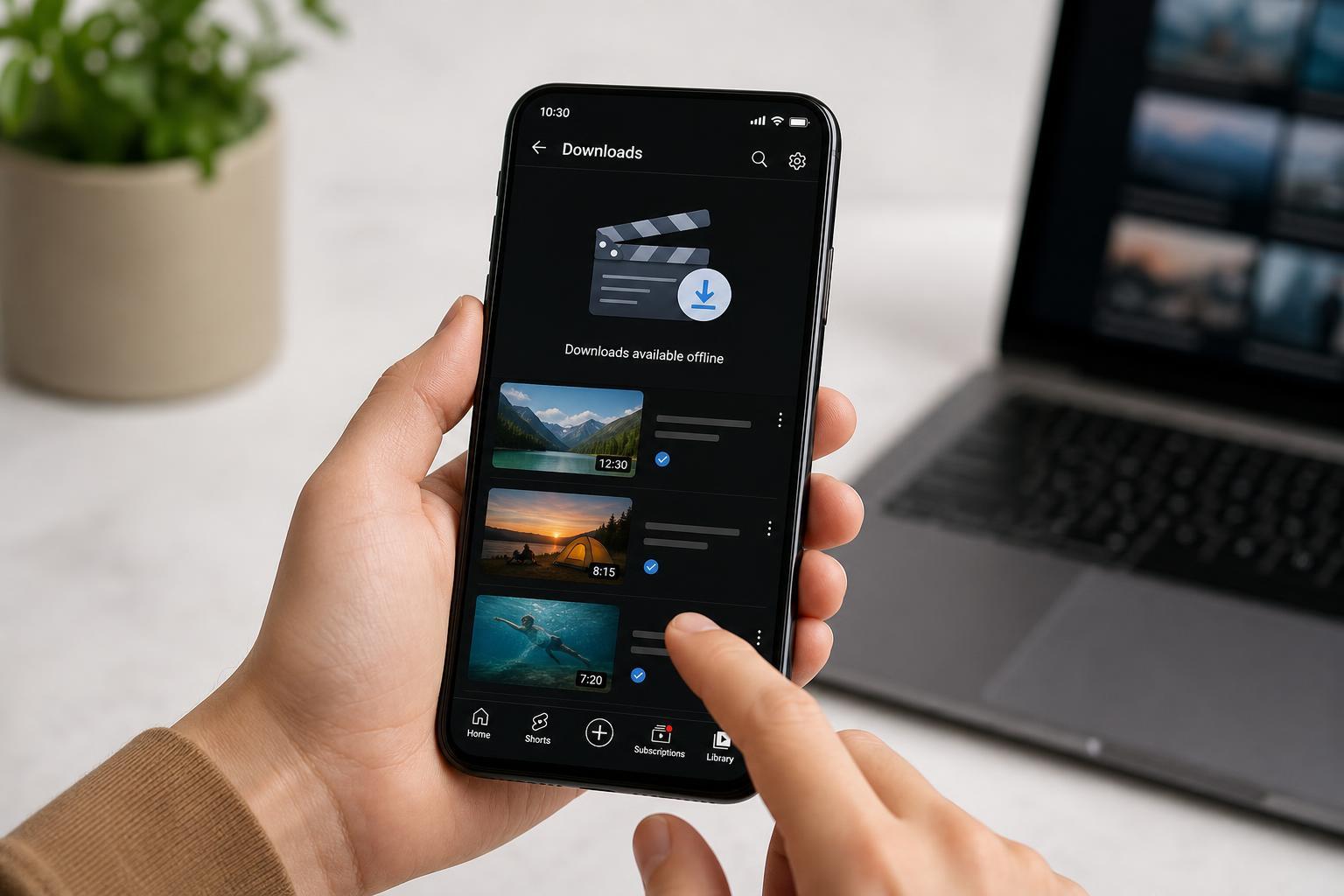
1. Check That YouTube Is Allowed to Download in the First Place
Before looking at more complicated causes, make sure the video and your account actually support downloads. Not every video on YouTube can be saved for offline viewing, and some downloads are restricted by the creator, music licensing, or age/content limitations.
- Make sure you are signed in to the same Google account that has YouTube Premium.
- Confirm the video has a download option in the YouTube app.
- Try a different video to see whether the issue affects only one upload.
- Check whether the video is restricted by age, location, or licensing rules.
2. Fix App, Account, or Subscription Problems
If YouTube Premium downloads should be available but nothing will save offline, the app may not be syncing your Premium status correctly. This can happen after a subscription change, an app update, or a sign-in issue.
- Open the YouTube app and confirm that your profile shows an active Premium subscription.
- Sign out of the YouTube app and sign back in with the correct account.
- Force close the app and reopen it.
- Check for app updates in the App Store or Google Play Store.
- If needed, clear the app cache on Android or reinstall the app on iPhone or Android.
3. Check Device Storage and Download Settings
Even when Premium is active, YouTube still needs enough free storage space and the right download settings to save videos locally. Low storage is one of the most common reasons downloads fail without a clear explanation.
- Check your device storage and free up space if it is nearly full.
- Open YouTube’s download settings and confirm the preferred video quality is not set too high for available space.
- Make sure downloads are allowed over your current connection type if you are on mobile data.
- Turn off any battery saver or data saver modes that may restrict background activity.
- Try downloading a shorter or lower-quality video to see whether the issue is space-related.
When the Problem Is Probably on YouTube’s Side
If downloads fail on multiple videos, in different networks, and after you have confirmed your account and storage, the issue may be temporary on YouTube’s side. In that case, wait a while and try again later, especially if the app otherwise works normally.
You can also test downloads on another device signed into the same Premium account. If downloads work there, the issue is likely with the original device or app installation.
What to Try First
- Test a different video to rule out a download restriction.
- Confirm you are signed into the correct Premium account.
- Check available storage and lower the download quality.
- Update or reinstall the YouTube app if downloads still fail.





