
Creating a group text on a Samsung phone is straightforward once you know where the option is hidden. Whether you want to message a few friends, a family group, or a work team, Samsung phones give you more than one way to start a group conversation.
The steps can look slightly different depending on whether you use Samsung Messages or Google Messages, but the basic process is similar: start a new message, add multiple recipients, and send your first text. Here are the three easiest ways to do it.
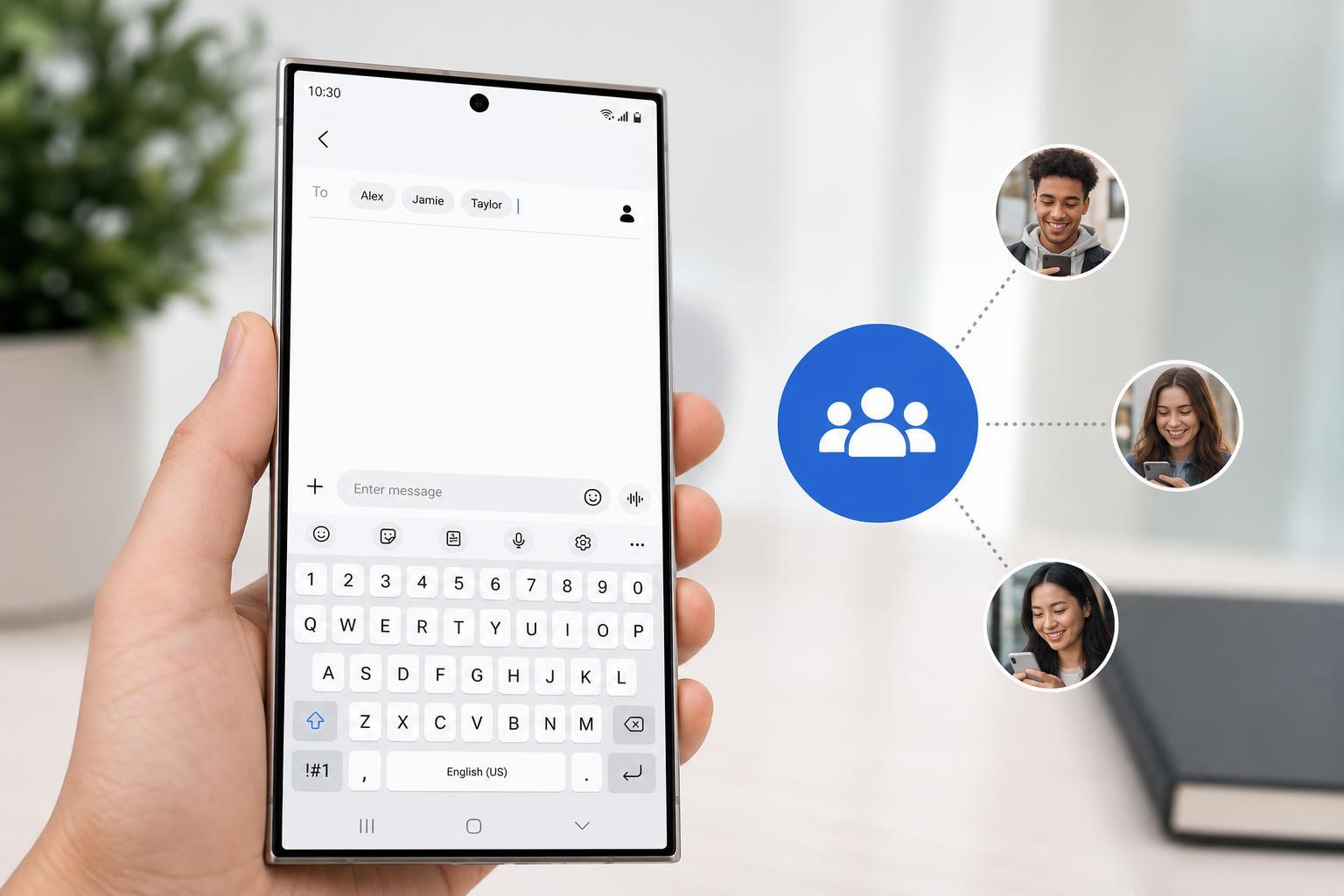
1. Start a Group Text from the Messages App
This is the most direct method and works well if you already know who you want to include in the group. In most cases, you can create a group text right from the standard Messages app on your Samsung phone.
- Open the Messages app.
- Tap the New conversation or Compose button.
- Add the people you want in the group by typing names, phone numbers, or selecting contacts.
- If prompted, make sure group messaging is enabled.
- Type your message and send it.
If you do not see a separate group chat option, that is usually normal. On many phones, the group is created automatically as soon as you add more than one recipient to the message.
2. Create a Group from Your Contacts
If you message the same people often, starting from Contacts can be faster than typing everyone in manually each time. This is especially useful for family groups, sports teams, or regular work chats.
- Open the Contacts app.
- Find one of the people you want to message.
- Tap Message or the messaging icon.
- Add the other recipients before sending.
- Write your message and send it to the whole group.
3. Use a Saved Group or Conversation Thread
If you already have an existing group thread, replying in that conversation is the quickest way to keep everyone included. This method is useful when you want to continue a discussion without rebuilding the group from scratch.
- Open the existing group conversation in Messages.
- Type your reply in the text box.
- Send the message as normal.
- If needed, add more people by opening the conversation details and choosing the option to add participants.
Samsung Messages vs Google Messages
Samsung phones may use either Samsung Messages or Google Messages depending on the device, region, and software version. The names of the buttons may change a little, but both apps let you create group texts.
- Samsung Messages: Often includes built-in Samsung-specific options and may look slightly different from phone to phone.
- Google Messages: Usually has a cleaner interface and is common on newer Samsung phones.
- Carrier features: Group messaging behavior can depend on your mobile carrier and message settings.
If the Group Text Does Not Work
If your message is sending to each person separately, or the group chat is not behaving as expected, the issue is usually a setting rather than the phone itself.
- Check that group messaging is enabled in the Messages app settings.
- Make sure mobile data is turned on if your phone uses MMS for group texts.
- Confirm that all recipients can receive multimedia or group messages on their carriers.
- Update the Messages app if available.
- Try sending the group to fewer people to see whether the issue is contact-related or network-related.
Which Method Should You Use?
For most people, starting a new conversation in the Messages app is the easiest option. If you text the same people regularly, creating the group from Contacts or replying in an existing thread is usually faster.
- Use the Messages app for a one-time group text.
- Use Contacts if you want a quick way to reach the same people again later.
- Use an existing thread if the group already exists and you just want to continue the conversation.





