If Discord works on mobile data or another network but fails on Wi-Fi, the problem is usually with the local network settings, the router, or Discord’s connection behavior on that connection. The good news is that you can often fix it with a couple of targeted checks instead of guessing at random settings.
This guide focuses on two reliable fixes that solve many Wi-Fi-only Discord issues, along with a few quick checks that help you confirm where the problem is coming from.
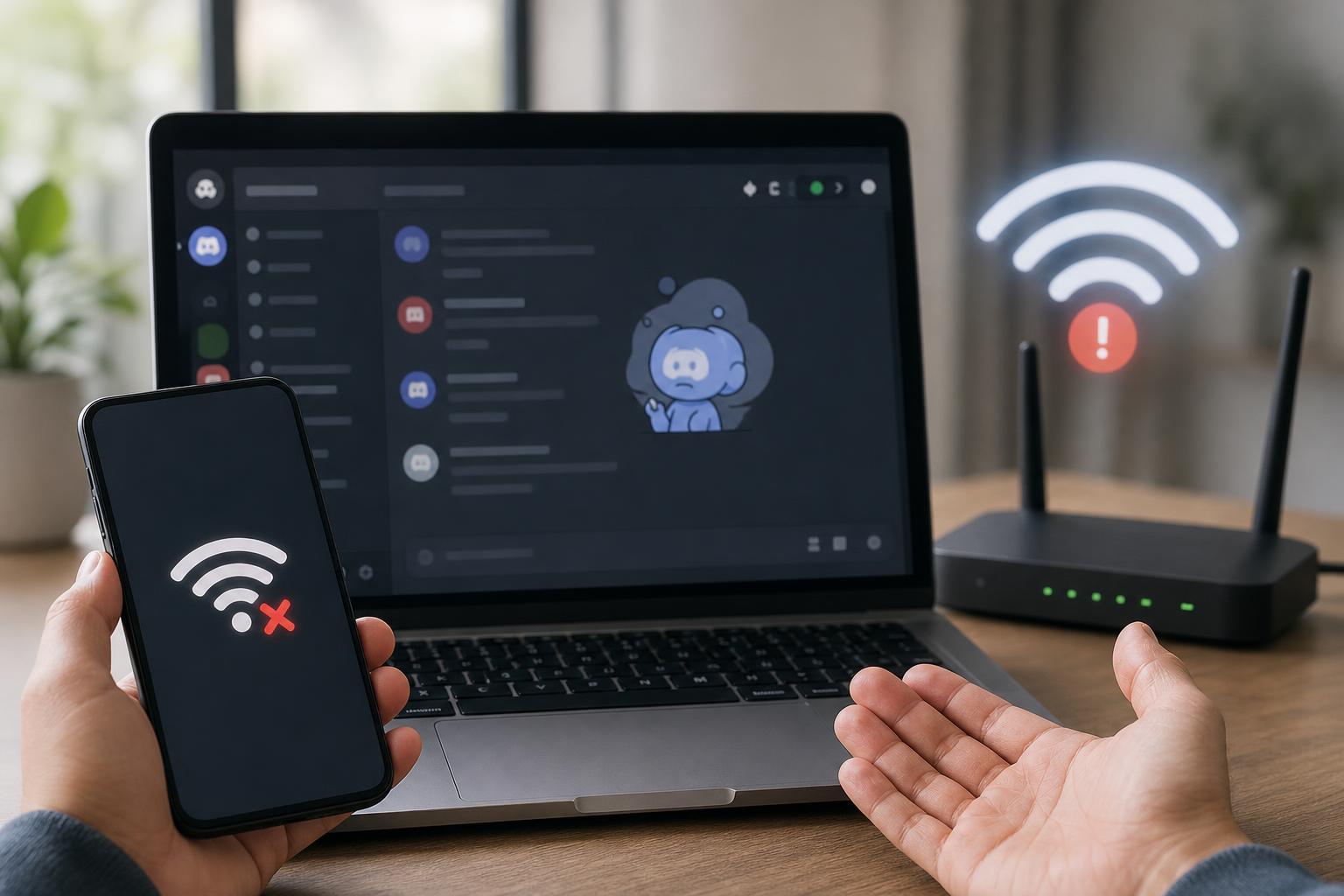
1. Check Whether Your Wi-Fi Is Blocking Discord Traffic
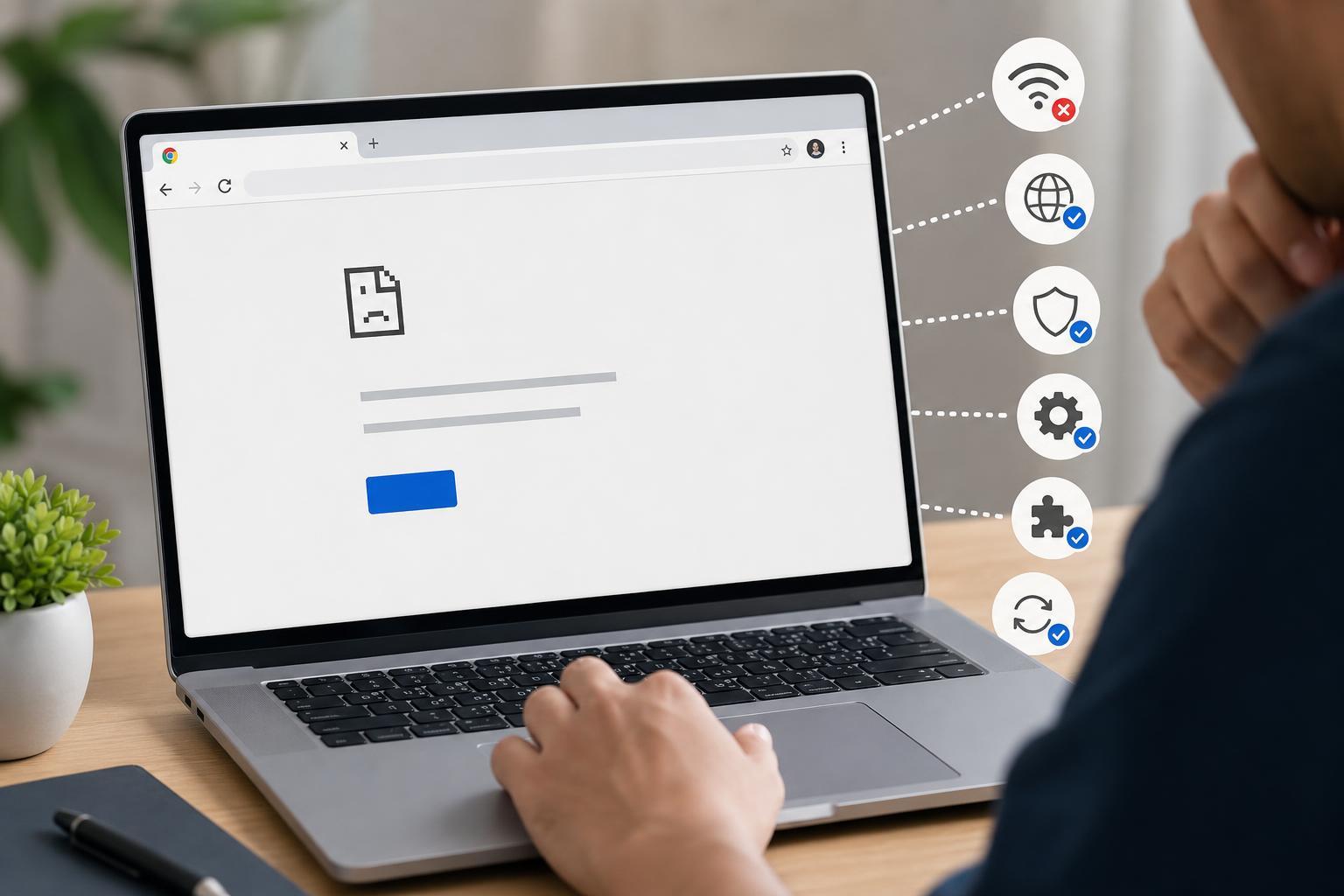
The first thing to look at is the network itself. Discord depends on a mix of web and real-time connection traffic, and some Wi-Fi networks block or interfere with that traffic without affecting normal browsing.
- Try Discord in a browser if the desktop app is failing, or try the app if the browser version fails.
- Test Discord on another Wi-Fi network, such as a phone hotspot, to see whether the issue follows the network.
- If only one device has the problem, the issue is more likely on that PC or phone than on the router.
- If every device on the Wi-Fi has the same issue, the router, DNS, or network filtering is the more likely cause.
- Open Discord while connected to the problem Wi-Fi and note exactly what happens. Does it stay stuck on connecting, fail to load messages, or disconnect after loading?
- Switch to another network, such as mobile data or a hotspot, and test Discord again.
- If Discord works elsewhere, open your router settings and look for features such as parental controls, web filtering, firewall rules, guest-network restrictions, or device access controls.
- If your router has a DNS setting, try using a reliable public DNS provider instead of the default ISP DNS. This can help if Discord domains are being resolved incorrectly or slowly.
- Save the changes, reconnect to Wi-Fi, and test Discord again.
2. Reset the Device’s Network Connection and Discord Cache
If the Wi-Fi itself does not appear to be blocking Discord, the next likely cause is a bad local network state or a damaged app cache. Discord can get stuck trying to use old connection data, especially after switching networks, changing routers, or waking a device from sleep.
- Close Discord completely, not just the window. On Windows, check the system tray and end Discord if it is still running.
- Forget the Wi-Fi network on the device, then reconnect and enter the password again.
- If you are on Windows, clear Discord’s cached files by closing Discord and removing its local cache folders if needed.
- Open Discord again and sign in if prompted.
- If the problem continues, reset the device’s network settings or renew the IP configuration, then test Discord again.
- A network reset can fix corrupted local settings, stale DNS entries, or a bad lease from the router.
- Clearing the app cache can help if Discord is loading outdated data or failing to initialize properly.
- Reconnecting to Wi-Fi forces the device to negotiate a fresh connection with the router.
How to Tell Which Fix Is More Likely
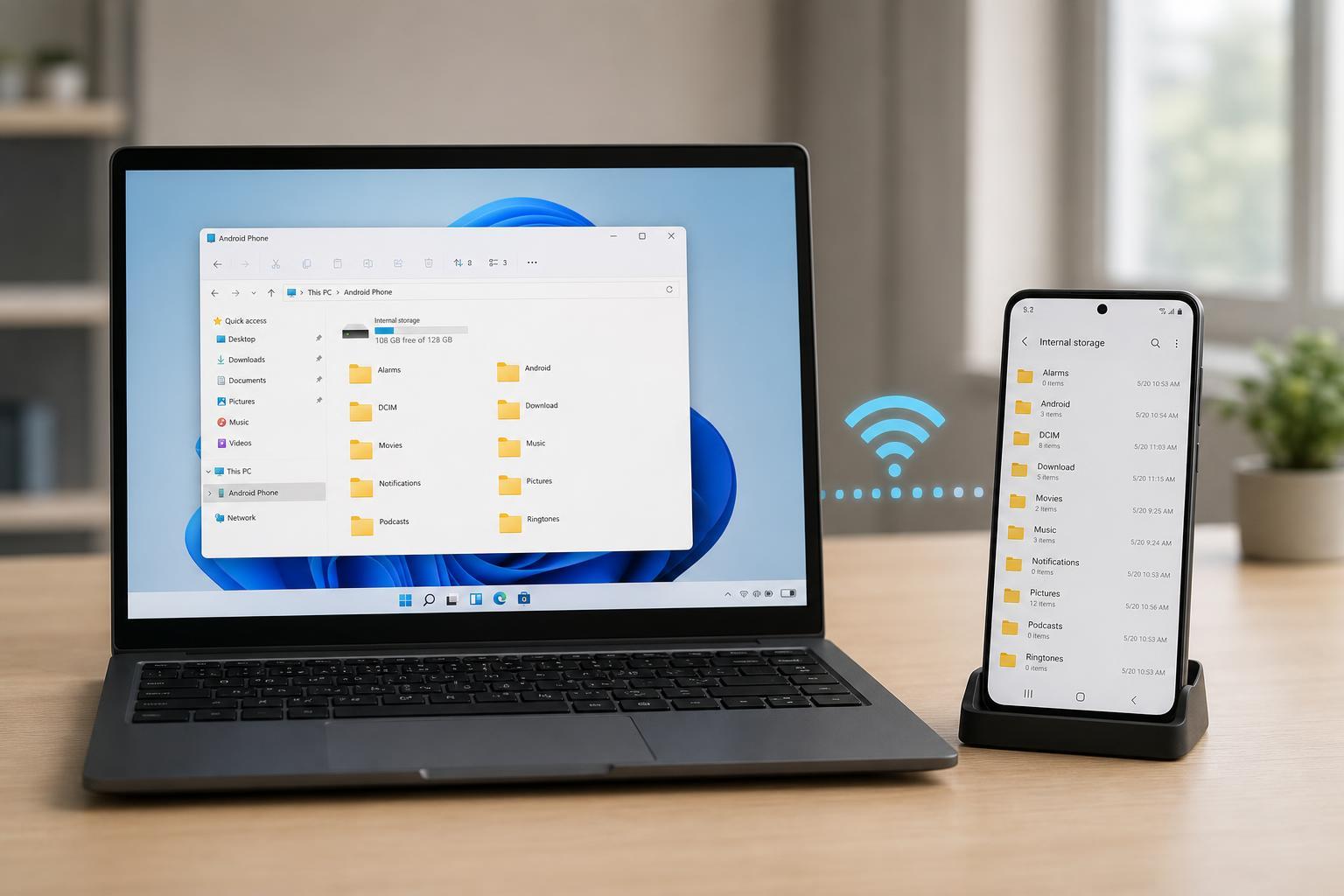
If Discord fails on every device connected to the same Wi-Fi, start with the router and DNS checks. If only one device has the issue, start with the device’s network reset and Discord cache cleanup.
- Every device affected: router, DNS, or network filtering problem
- Only one device affected: local network settings or Discord cache problem
- Discord works on hotspot but not Wi-Fi: the Wi-Fi network is likely blocking or misrouting traffic
- Discord works in a browser but not the app: the desktop app cache or connection state may be the issue
When the Problem Is Probably Not Your Wi-Fi
If Discord is down for everyone, or if the app fails on multiple networks, the issue may be on Discord’s side rather than your Wi-Fi. In that case, checking Discord’s status and trying again later is more useful than changing router settings.