
Samsung phones include a lot of message settings that can change how texts look, how notifications work, and which extra features are available in Samsung Messages or Google Messages. If you know where these options are, you can make texting easier, quieter, more private, and more reliable.
This guide covers 15 Samsung text message settings worth knowing, including the ones that affect delivery receipts, spam protection, auto-downloads, chat features, and more.
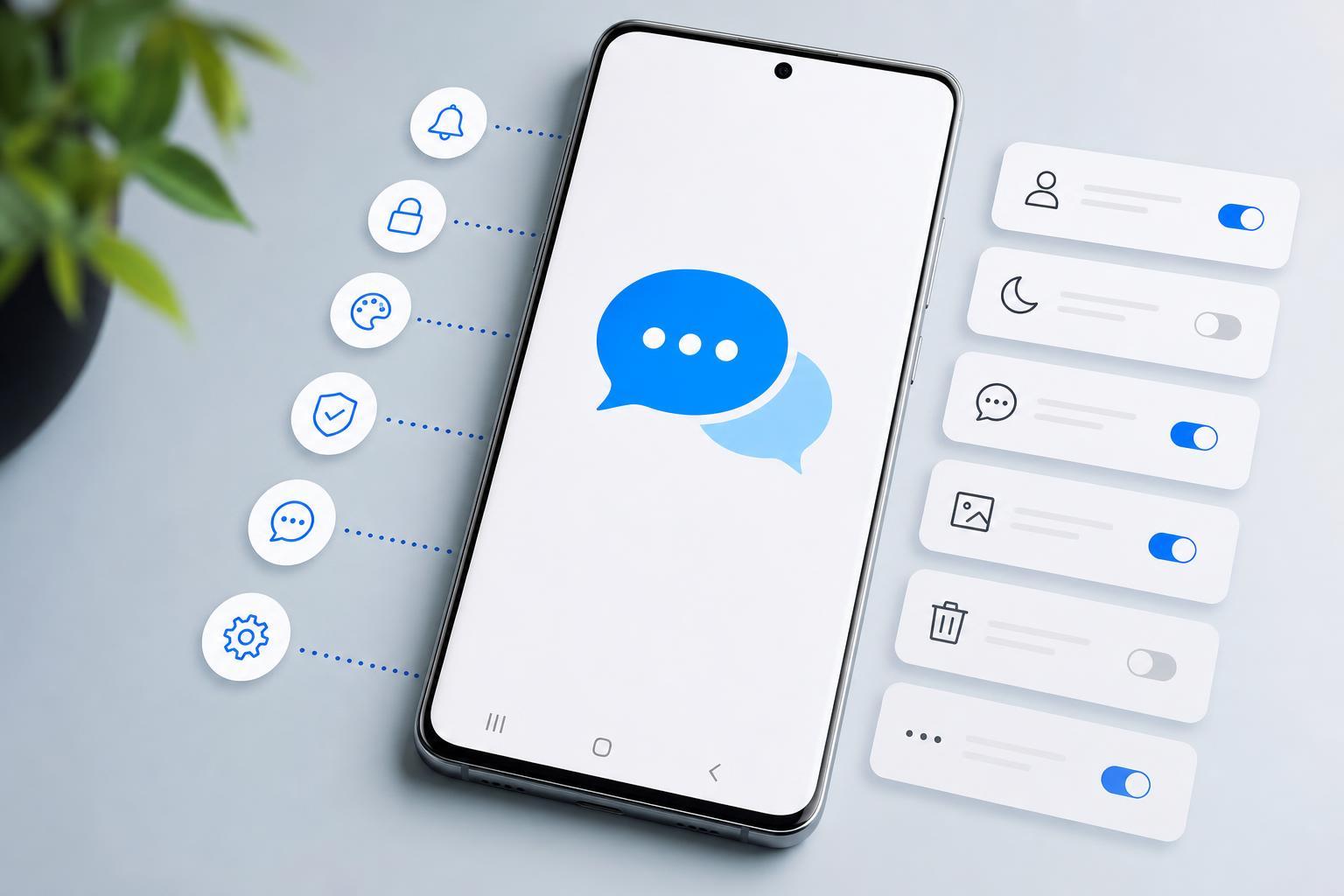
1. Message Notifications
If you are missing texts or want less noise from messaging, start with notification controls. On Samsung phones, message alerts can be changed per app and sometimes per conversation. You can adjust sound, vibration, pop-up alerts, lock screen previews, and whether messages appear as bubbles or banners.
2. Notification Categories for Messages
Samsung and Android may let you control different notification categories inside the Messages app. For example, you may be able to separate general message alerts from service messages, promotional messages, or other message types depending on the app version.
3. Chat Features / RCS
Many Samsung phones support RCS chat features through Samsung Messages or Google Messages, depending on your carrier and region. When enabled, supported conversations can show typing indicators, read receipts, higher-quality media, and Wi-Fi-based messaging behavior.
4. Read Receipts
Read receipts let other people know when you have opened their message. Some users like this for clarity, while others prefer to keep it off for privacy.
5. Typing Indicators
Typing indicators show when someone is actively composing a message. This is another RCS feature that can make conversations feel more immediate, but it is not always available in every thread.
6. Auto-Download of MMS
MMS messages often contain pictures, audio, or group message attachments. Auto-download determines whether your phone fetches those items automatically or waits for you to tap them manually.
7. Group Messaging Behavior
Group text settings can affect whether your phone sends group messages as MMS or handles replies in a more advanced chat format. This matters because the wrong setting can make group threads split, lose replies, or behave inconsistently across different phones.
8. Spam Protection and Message Filtering
Samsung Messages and Google Messages both offer some form of spam filtering or message protection. These features can help hide suspicious texts, promotional messages, or known spam numbers before they clutter your inbox.
9. Blocked Numbers
The blocked list is one of the most important text settings on any Samsung phone. If a person cannot text you, or if you are no longer receiving messages from a certain number, check whether the sender has been blocked.
- Open your Messages app.
- Open the conversation or settings menu.
- Look for blocked numbers or block settings.
- Remove the number if you want messages from it again.
10. Message Size and Font Display
Samsung gives you several display options that can make texts easier to read, including message text size, screen zoom, and system font size. These settings do not change the message itself, but they can make long conversations much more comfortable to use.
11. Conversation Wallpaper or Background
Some Samsung messaging apps let you customize the look of individual conversations with wallpapers or background colors. This is mostly a visual preference, but it can help separate important chats from everyday threads.
12. Sound and Vibration for Messages
You can usually choose a message tone, vibration pattern, or silent behavior separately from other notifications. This is helpful if you want texts from a certain app to stand out, or if you prefer a quieter phone during work and sleep.
13. Message Preview on the Lock Screen
Lock screen previews decide whether the full text appears on your lock screen or only a generic notification does. If you regularly receive private messages, this setting can matter a lot.
14. Auto-Delete or Storage Cleanup Options
Some messaging apps let you remove old messages automatically or help you manage storage by deleting large message threads. This can prevent the app from getting cluttered and reduce unnecessary storage use over time.
15. Default Messaging App
Your Samsung phone may let you choose which app handles text messages by default. This matters because Samsung Messages, Google Messages, and carrier or third-party apps can all behave a little differently.
- Samsung Messages may fit users who prefer Samsung’s interface and device integration.
- Google Messages is often preferred for broader RCS support and a more consistent Android experience.
- A third-party app may offer extra features, but it can also introduce compatibility or notification differences.
How to Find These Settings Quickly
The exact menu names can vary slightly by Galaxy model and software version, but most message settings are found in the Messages app itself, in Android Settings under Notifications, or inside the app’s menu and chat options. If you do not see a feature, it may be hidden because of your carrier, region, or the messaging app you are using.
- Open the Messages app.
- Tap the three-dot menu or your profile/settings icon.
- Check conversation, notification, chat, spam, and advanced options.
- Open Android Settings if you need deeper notification or app permission controls.
What These Settings Can Fix
Knowing these Samsung text message settings can help you solve some of the most common messaging problems, such as missing alerts, unreadable conversations, unexpected data use, or not receiving group texts correctly. They also help you shape texting around your preferences instead of relying on the default setup.
Choose the Settings That Match How You Text
Not every Samsung text message setting is useful for every person. Some are about convenience, some are about privacy, and some only matter if you use RCS or group messaging often. The best setup is the one that makes your messages easier to manage without adding extra clutter or missing important texts.





