
The Nothing Phone (1) stands out for its clean software, unique Glyph interface, and simple design — but a lot of its best features are easy to miss. If you have just picked one up, or you want to get more out of it, these tips and tricks will help you use the phone more efficiently and customize it to suit the way you work and play.
This guide focuses on practical things you can actually use: shortcuts, display options, camera features, battery-saving settings, and a few Nothing-specific tricks that make the phone feel more personal.
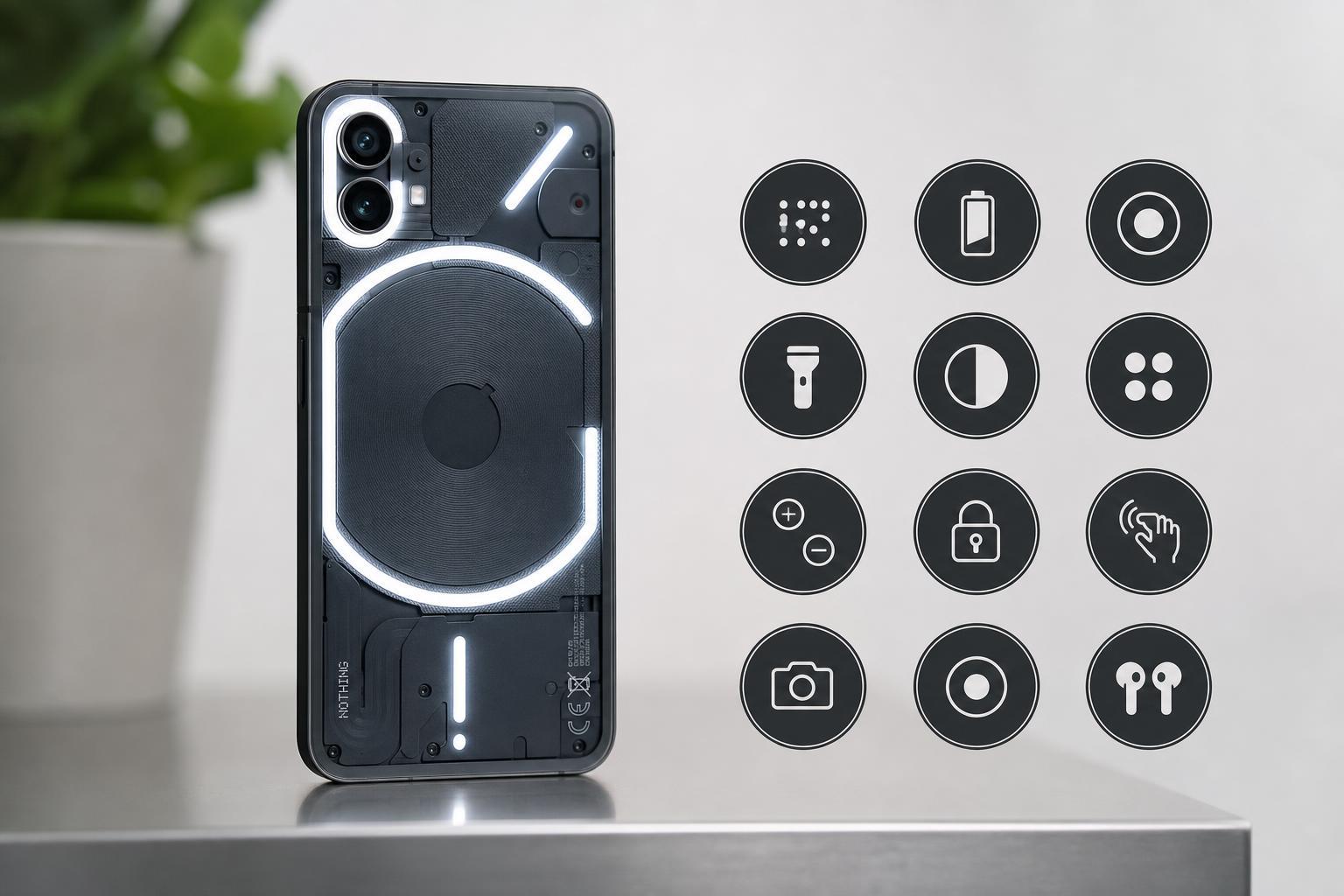
1. Use the Glyph Interface as a Real Notification Tool
The Glyph lights on the back are more than a design feature. You can use them to identify calls, notifications, and charging status without looking at the screen. In Nothing OS settings, you can assign different ringtones and notification patterns so important alerts stand out more clearly.
This is especially useful when your phone is face down on a desk or in a meeting. Instead of checking the display every few minutes, you can rely on the back lights for a quick status check.
2. Set Custom Glyph Ringtones for Contacts
One of the most useful Nothing Phone (1) features is the ability to assign special Glyph ringtones to specific contacts. That means you can tell who is calling just by the light pattern and sound.
- Open the Contacts or Phone app.
- Select the contact you want to customize.
- Look for ringtone or Glyph-related options.
- Choose a unique sound and pattern if available.
- Save the contact profile and test it with a call.
If you only customize a few people — such as family members, your manager, or your most important clients — the system becomes much easier to recognize in daily use.
3. Turn on Flip to Glyph for Quiet Alerts
Flip to Glyph is one of the simplest ways to make the Phone (1) more useful. When you place the phone face down, it can use the rear lights for notifications instead of the screen lighting up repeatedly.
This helps reduce distractions and can also make incoming alerts less intrusive in meetings, lectures, or when the phone is on your nightstand.
4. Use the Camera Grid and Level for Better Photos
The Nothing Phone (1) camera app includes practical shooting aids that can improve your photos immediately. The grid helps you line up horizons and subjects, while the level makes it easier to keep shots straight.
These tools are especially helpful for food photos, landscapes, product shots, and any image where a crooked horizon would be distracting. They also make the phone easier to use if you are still learning basic composition.
5. Explore Motion Photos and HDR Settings
If your photos sometimes look flat or miss the right moment, check the camera settings for options like Motion Photos and HDR. Motion Photos can capture a brief clip around the image, while HDR helps preserve more detail in bright skies and darker shadows.
These settings are not always ideal for every shot, but they are worth testing if you want more flexible photos without much extra effort.
6. Customize the Always-On Display and Lock Screen
The Nothing Phone (1) gives you several ways to personalize what appears when the phone is locked. You can adjust the always-on display, clock style, and notifications so the lock screen shows only what matters to you.
A simpler lock screen can be easier to read at a glance and may help reduce battery drain compared with having more visual elements enabled than you actually need.
7. Use Dark Mode Everywhere You Can
Dark mode is not just a visual preference on the Nothing Phone (1). It can make the interface easier on your eyes in low light and may also help battery life, especially if you spend a lot of time on apps that support dark themes.
You can usually enable dark mode from quick settings or display options, and many apps will follow the system theme automatically.
8. Check App Battery Usage and Restrict the Worst Offenders
If battery life is not as good as you expected, the culprit is often a small number of apps running too aggressively in the background. Battery settings can show which apps are using the most power so you can decide whether to restrict them.
- Open Settings.
- Go to Battery.
- Review battery usage by app.
- Look for apps that use an unusual amount of power.
- Restrict background activity for apps you do not need running all the time.
This is more effective than guessing. If one social app, tracker, or game is draining the battery, you can deal with the actual problem instead of changing settings across the whole phone.
9. Learn the Quick Settings Shortcuts
Quick Settings can save a surprising amount of time once you customize them. You can reach Wi‑Fi, Bluetooth, flashlight, battery saver, hotspot, and other commonly used controls with a swipe and a tap.
If you rearrange the tiles, put the options you use most often near the top. That way you spend less time hunting through menus for everyday tasks.
- Swipe down from the top of the screen.
- Open the quick settings panel fully if needed.
- Tap the edit or pencil icon.
- Drag your most-used tiles into the top section.
- Remove tiles you never use to keep the panel tidy.
10. Use One-Handed Reach More Comfortably
If you find the Phone (1) a little awkward to use with one hand, check for gestures and reachability features that reduce how far you need to stretch. Small adjustments like gesture navigation, moving key shortcuts lower, and using the keyboard one-handed can make daily use easier.
This is especially helpful for large hands, smaller hands, or times when you are carrying something and only have one hand free.
11. Keep Storage Under Control Before It Fills Up
A phone that is nearly full can feel slower to use and more annoying to manage. On the Nothing Phone (1), it is worth checking storage regularly so you can delete large videos, unused downloads, and app caches before they become a problem.
Photos, social media downloads, and messaging attachments often take up more space than people expect. Cleaning these out every so often is easier than trying to recover space after the phone is already full.
12. Keep Nothing OS Updated
Nothing OS updates can improve stability, add features, and fix bugs that affect battery life, camera behavior, or notifications. Even if everything seems fine, installing updates is one of the simplest ways to keep the phone working properly.
Before updating, make sure you are on a reliable Wi‑Fi connection and have enough battery. Then check Settings for software updates and install any available release when it is convenient.
A Few Extra Nothing Phone (1) Habits Worth Keeping
The best results usually come from combining a few small settings rather than relying on one big trick. For example, use Glyph alerts for important contacts, keep dark mode enabled, and review battery use once in a while. Those small habits make the phone feel more polished and easier to live with.
If you are still getting used to Nothing OS, spend a few minutes exploring settings instead of leaving everything at the default. The Phone (1) is designed to be simple, but it is also more customizable than it first appears.





