
Xiaomi Redmi phones include a lot of call-related settings that can make everyday calling easier, clearer, and less distracting. If you know where to look, you can improve call quality, block nuisance calls, manage dual SIM behavior, and customize how your Redmi handles incoming and outgoing calls.
This guide covers the most useful call settings tips and tricks for Xiaomi Redmi devices, with simple steps you can try in the Phone app and system settings.
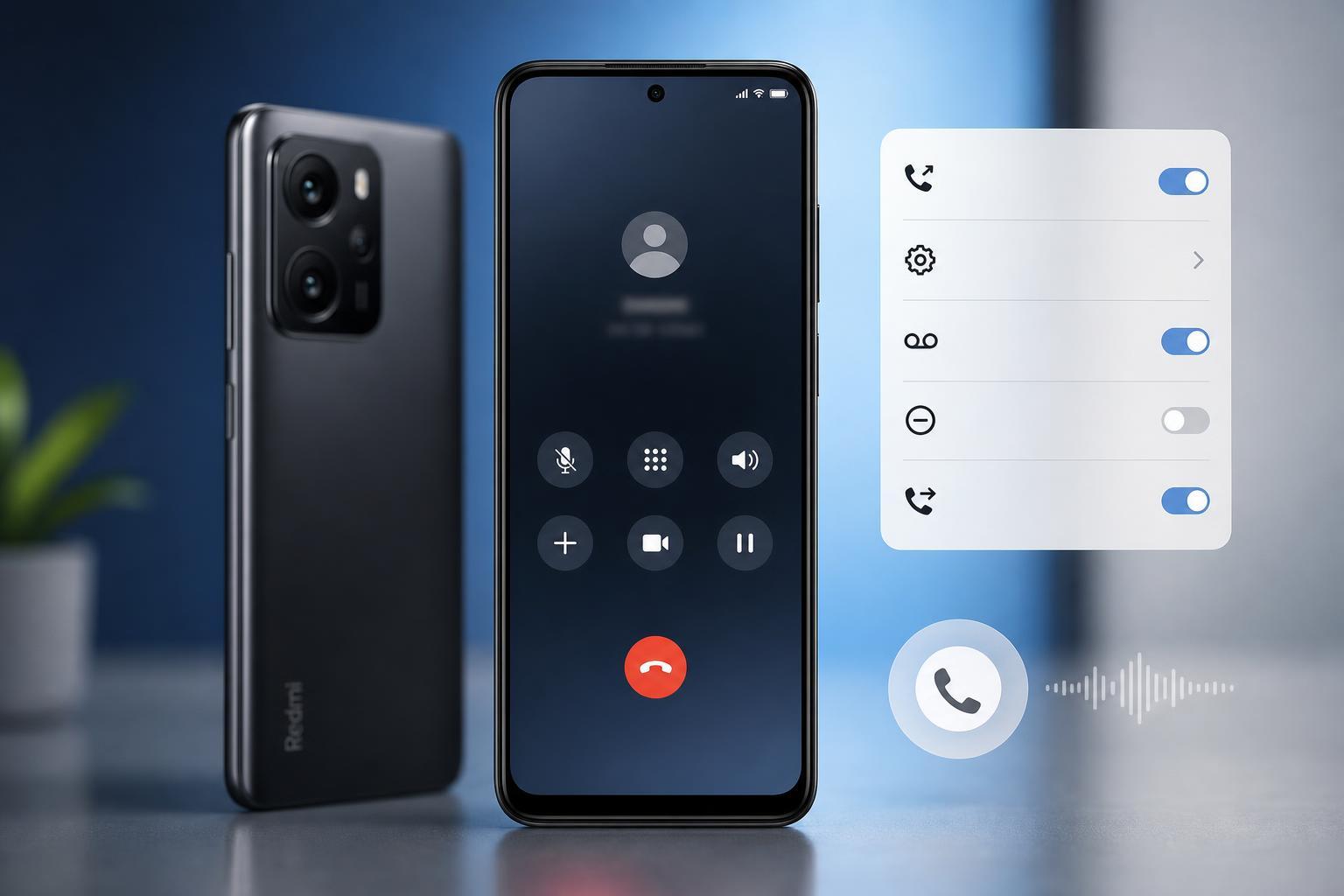
1. Turn On Caller ID and Spam Protection
One of the most useful call settings on a Redmi phone is built-in caller ID and spam protection. This can help identify unknown numbers and warn you about suspected spam calls before you answer.
- Open the Phone app.
- Tap the menu or settings icon.
- Go to Caller ID and spam or a similar option.
- Turn on caller ID and spam protection if available.
2. Set a Default SIM for Calls
If your Redmi device uses two SIM cards, choosing a default calling SIM can prevent confusion and make dialing faster.
- Open Settings.
- Tap SIM cards and mobile networks.
- Select your preferred SIM for calls.
- Choose whether the phone should always ask, or use one SIM by default.
3. Use Call Forwarding When You Need It
Call forwarding is helpful if you want calls to ring another number when you are busy, unreachable, or away from your phone.
- Open the Phone app.
- Go to call settings.
- Find Call forwarding.
- Choose when to forward calls: always, when busy, when unanswered, or when unreachable.
- Enter the number you want calls forwarded to.
4. Block Specific Numbers and Unknown Callers
If a person keeps calling or you want to reduce unwanted interruptions, blocking a number is usually the simplest fix. Many Redmi phones also let you block hidden or unknown callers.
- Open the Phone app.
- Open your recent calls or contacts list.
- Tap the number you want to block.
- Choose Block or Add to blacklist.
- Check call blocking settings if you also want to block unknown or private numbers.
5. Silence or Reject Calls with Gestures
Redmi phones often include simple gesture-based call controls that make it easier to silence an incoming call without fumbling through buttons.
- Press the volume buttons to silence the ringtone.
- Flip the phone face down to mute incoming calls if supported.
- Use the power button or a swipe gesture to reject or silence calls, depending on your settings.
6. Improve In-Call Audio with Volume and Accessibility Options
If calls sound too quiet, too loud, or unclear, the issue may be easy to improve with volume controls or accessibility settings.
- During a call, use the side volume buttons to adjust call volume.
- Open Settings and look for Accessibility or Sound settings.
- Check for hearing-related options such as mono audio or sound enhancements if your device includes them.
- If you use Bluetooth headphones or a car kit, test the call again with and without Bluetooth to compare audio quality.
7. Turn On Auto Recording Only Where It Is Legal and Useful
Some Redmi devices and regions support automatic call recording. This can be useful for keeping a record of important calls, but it is not available everywhere and may be restricted by local laws.
- Open the Phone app.
- Go to call settings or recording settings.
- Check whether call recording is available on your device and in your region.
- If available, choose automatic recording for all calls or selected numbers only.
8. Use Call Waiting So You Do Not Miss Another Call
Call waiting lets you know when a second call comes in while you are already on the phone. It is a practical setting if you take a lot of important calls.
- Open the Phone app settings.
- Find Call waiting.
- Turn it on if your carrier supports it.
- Test it by making or receiving a second call while another call is active.
9. Customize Ringtone and Vibration for Easier Call Recognition
A different ringtone or vibration pattern can help you recognize important calls faster, especially if your phone is often in your pocket or bag.
- Open Settings.
- Go to Sound and vibration.
- Choose a ringtone for calls.
- Adjust vibration strength or pattern if your Redmi model supports it.
- Set a different ringtone for specific contacts if you want to recognize them instantly.
10. Check SIM and Network Settings if Calls Drop or Sound Bad
If calls are cutting out, failing to connect, or sounding distorted, the cause may be your SIM, signal, or network mode rather than the Phone app itself.
- Make sure the correct SIM is selected for calls.
- Check that mobile signal strength is stable in your location.
- Open SIM card settings and verify that the active SIM is enabled.
- If available, test Wi-Fi calling or VoLTE settings from your carrier-supported options.
- Try moving to a different location to see whether the issue is signal-related.
How to Find Call Settings on a Redmi Phone
On most Xiaomi Redmi devices, call settings are inside the Phone app rather than only in the main Settings menu. That is why some options can be easy to miss.
- Open the Phone app.
- Tap the menu icon or settings gear.
- Look for options such as Caller ID, Call recording, Blocked numbers, Call forwarding, or Advanced settings.
- If you cannot find a feature, use the Settings search bar and search for the exact term.
Which Tips Are Most Useful First?
If you only want to change a few things, start with spam protection, SIM defaults, and call blocking. Those settings usually give the biggest everyday improvement with the least risk.
- Best for reducing nuisance calls: caller ID and spam protection
- Best for dual-SIM users: default SIM settings
- Best for avoiding missed calls: call waiting and ringtone customization
- Best for call reliability: SIM and network checks
- Best for privacy and records: call recording, where legally allowed





